The Ultimate Guide to Apple’s Proprietary SSDs
Remember the good ol’ days of carrying a spare battery, upgrading your own RAM, maybe even adding a second hard drive? If you’re an Apple user, those luxuries may be behind us, but upgrading your own solid state drive is still a privilege the Apple overlords allow us to have, for now that is.
Despite retaining the ability to upgrade your own SSD, ever since Apple introduced their proprietary “blade” SSDs in 2010, the task hasn’t been as simple as it once was. Apple talks up read and write speeds, but they rarely dive into the nitty gritty details of the technology behind the SSDs they use — drives specially designed only for Apple computers.
After countless questions, both from customers and our own staff, we decided to start our own investigation into the hardware involved. You have to be a bit of a private eye to uncover the secrets behind these drives, and the deeper we looked, the more surprises we found.
Table of contents
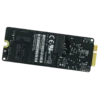
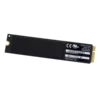
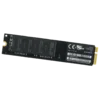
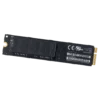
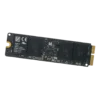
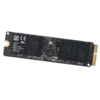
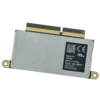
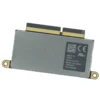
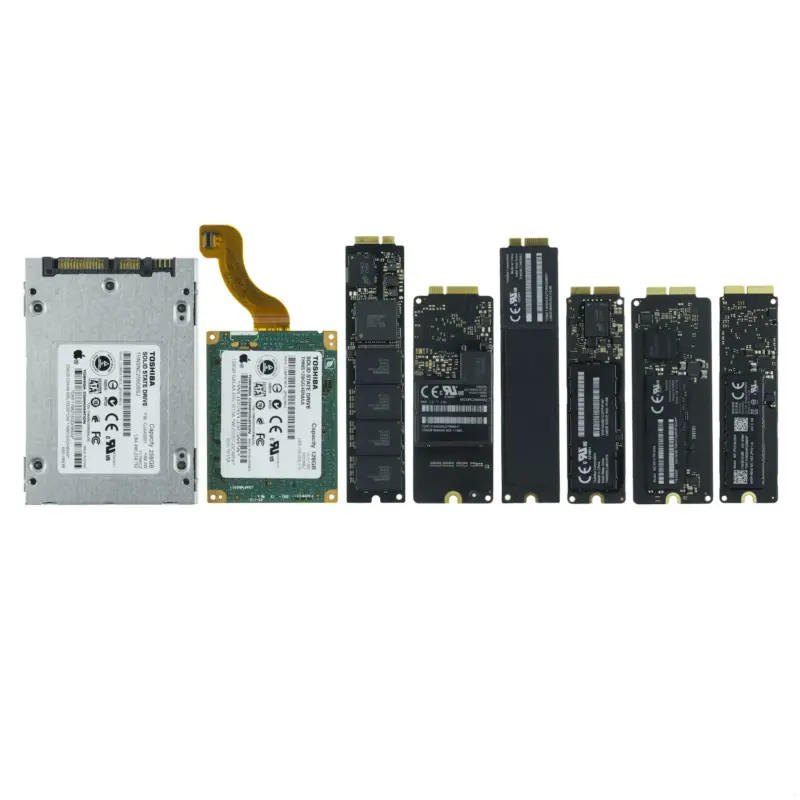 LTR: Gen. 1 SSD, Gen. 2B, Gen. 2A, Gen. 3A (comparable to Gen. 4A and Gen. 4C), Gen. 3B (comparable to Gen. 4B), Gen. 5B, Gen. 5A
SSD Interfaces Compared
Every hard drive or solid state drive you’ve used in the past ten years is likely to have used either a SATA interface, or more recently a PCI Express interface. If you’re into vintage computers and you think patience is a virtue that can only be honed by waiting for programs to respond, maybe you’re still rocking a drive with a PATA interface. If you are, it’s time to get up to speed!
Ever faster drive technology, brought about by faster spinning disks, increased cache, advances in controller architecture, and a host of other factors keeps pushing the host interface to become the bottleneck for read and write speeds. Luckily, advances in host interfaces invariably stay ahead of the pace of drive technologies, always allowing room to push speeds a bit farther.
What is SATA?
SATA (Serial Advanced Technology Attachment) refers to the technology standard for connecting hard drives, solid state drive, and optical drives to the computer’s motherboard. The SATA standard’s been in use for many years and is still the most prevalent interface for connecting internal storage drives.
The SATA standard has now undergone three major revisions, resulting in connectors that are identical in appearance (hurray for backwards compatibility), but with bandwidth doubling each time. This can cause some confusion in the event that you connect a hard drive that supports the SATA III standard into a SATA II connector, creating a bottleneck at the SATA II interface that will limit the potential bandwidth of the drive. But as it applies to SSDs, if you’re not using a SATA III connection, it’s safe to assume you’re limiting the potential of your drive. And even if you’re using a SATA III interface, you’re still probably limiting your SSD. In short, SATA just wasn’t made for solid state drives.
| Interface | Raw Transfer Rate | Encoding | Effective Data Rate | Effective Data Rate |
|---|---|---|---|---|
| SATA I | 1.5Gb/s | 8b/10b | 1.2Gb/s | 0.15GB/s |
| SATA II | 3Gb/s | 8b/10b | 2.4Gb/s | 0.30GB/s |
| SATA III | 6Gb/s | 8b/10b | 4.8Gb/s | 0.60GB/s |
What is PCIe?
Peripheral Component Interconnect Express (PCIe) is a computer bus standard with incredibly high bandwidth potential, and is the fastest bus option that most computers have available. It’s no wonder that manufacturers moved towards PCIe technology for their bandwidth hungry SSDs. Like the SATA bus standard, PCIe has undergone multiple revisions over the years and is still evolving at breakneck speeds. PCIe 2.0 (which is likely to be the most common PCIe revision found inside in-use computers) maxes out at ~500MB/s with a single channel of throughput. Those speeds may sound a bit slower than SATA III, but PCIe has the advantage of utilizing multiple channels of throughput to accommodate the needs of the connected peripheral.
Two channels of throughput (~1GB/s) not enough for you? Double the number of channels to four and you’ll realize double the data transfer rates, if the connected device can make use of it that is. PCIe bandwidth can be scaled up to 16 and even 32 lanes for a single device, but that’s uncommon in SSDs and primarily reserved for devices like graphics cards which have larger data transfer requirements. Most PCIe SSDs will have either 2, or more recently, 4 channels of throughput.
In 2011 the PCIe 3.0 revision was released, and finally brings more to the table than just the ability to add additional channels. PCIe 1.0 and 2.0 both use 8b/10b encoding to transmit data (the same as SATA), meaning that for every 8 bits of data sent, the data is sent via a 10 bit line code. In other words, 2 of the 10 bits are just overhead necessary to transmit the rest of the data. That 20% overhead eats into the potential bandwidth of an interface, resulting real world bandwidth that’s 20% lower.
PCIe 3.0 introduced the much more efficient 128b/130b encoding, resulting in only only ~1.5% overhead to eat into the potential bandwidth.
PCIe Speed Comparison Chart
| Interface | Raw Data Rate | Encoding | Effective Data Rate | Channels | Total Effective Data Rate |
|---|---|---|---|---|---|
| PCIe 1.x | 2.5GT/s | 8b/10b | 2.0Gb/s | 2 | 500MB/s |
| PCIe 1.x | 2.5GT/s | 8b/10b | 2.0Gb/s | 4 | 1.0GB/s |
| PCIe 1.x | 2.5GT/s | 8b/10b | 2.0Gb/s | 8 | 2.0GB/s |
| PCIe 1.x | 2.5GT/s | 8b/10b | 2.0Gb/s | 16 | 4.0GB/s |
| PCIe 1.x | 2.5GT/s | 8b/10b | 2.0Gb/s | 32 | 8.0GB/s |
| PCIe 2.x | 5GT/s | 8b/10b | 4.0Gb/s | 2 | 1.0GB/s |
| PCIe 2.x | 5GT/s | 8b/10b | 4.0Gb/s | 4 | 2.0GB/s |
| PCIe 2.x | 5GT/s | 8b/10b | 4.0Gb/s | 8 | 4.0GB/s |
| PCIe 2.x | 5GT/s | 8b/10b | 4.0Gb/s | 16 | 8.0GB/s |
| PCIe 2.x | 5GT/s | 8b/10b | 4.0Gb/s | 32 | 16.0GB/s |
| PCIe 3.x | 8GT/s | 128b/130b | 7.9Gb/s | 2 | 1.98GB/s |
| PCIe 3.x | 8GT/s | 128b/130b | 7.9Gb/s | 4 | 3.95GB/s |
| PCIe 3.x | 8GT/s | 128b/130b | 7.9Gb/s | 8 | 7.90GB/s |
| PCIe 3.x | 8GT/s | 128b/130b | 7.9Gb/s | 16 | 15.80GB/s |
| PCIe 3.x | 8GT/s | 128b/130b | 7.9Gb/s | 32 | 31.60GB/s |
AHCI vs NVMe
Advanced Host Controller Interface (AHCI) was originally created when storage devices still used spinning magnetic disks to store data. and communicated data based on the speeds and needs of those devices. AHCI was versatile enough to work with SSDs while SSDs were still in their infancy, but it’s been a hindrance to transfer rates for a few years now.
Enter NVMe, or Non-Volatile Memory Express. NVMe was created specifically to work with SSDs, reducing the latency and allowing for larger amounts of data to be transferred at a single time, making better use of modern multi-core processors. NVMe becomes especially important with PCIe SSDs, where AHCI starts to bottleneck the speeds. By the time the PCIe 3.0 revision came out, NVMe became essential to reach the full potential throughput of the drives.
Apple's Proprietary Connectors
When Apple released their first “blade” solid state drive in the Late 2010 release of the MacBook Air, they still used established mSATA interface technology, but ditched the traditional SATA and mSATA form factors found in most laptops at that time, instead opting for a custom connector that’s never been used by another manufacturer before or since. With the 2010 MacBook Air, Apple began a new trend of developing proprietary connectors and form factors that eventually pervaded the entire Apple lineup and ushered in an era of drives that, while easily replaceable, were not so easy to find.
Many people incorrectly assume the connectors are one of the M.2 variants found in many PCs, but to date, Apple has still never used a standard M.2 connector. And unlike M.2 pin arrangements, Apple’s connectors were never given distinguishing names, so from this point on I’ll just refer to the connectors by their pin arrangements as described in the image below.
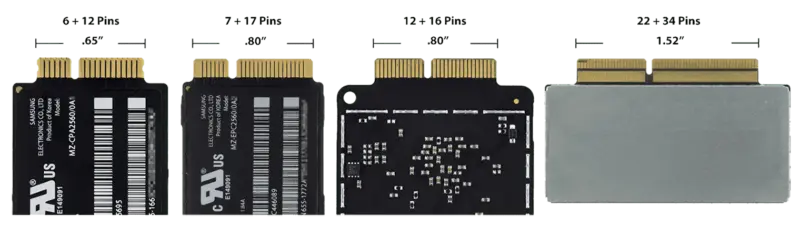 Comparison of proprietary SSD connectors.
A History of Apple SSD Releases
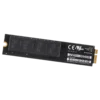
Generation 1: MacBook Air (Late 2010 - Mid 2011)
For the Late 2010 and Mid 2011 releases of the MacBook Air 11″ (Model A1370) and MacBook Air 13″ (Model A1369), Apple’s desire to shave down the height of the already thin original MacBook Air necessitated a switch to a thinner drive. Rather than use a 2.5″ SATA SSD as seen in the rest of Apple’s product lines, or even the 1.8″ SSD found in the original MacBook Air, Apple switched to an even thinner, custom drive. This “Generation 1” drive utilized a proprietary 6+12 pin connector, but still used an mSATA III interface limited to 6Gb/s; the same limitation as the other product lines released during this period.
Both Samsung and Toshiba manufactured Apple’s Generation 1 SSDs, but rather notoriously, the Toshiba drives performed significantly worse than their Samsung counterparts. Both drives performed up to Apple’s advertised specs, mind you, but MacBook Air customers were subject to an SSD lottery, with Samsung drives performing reads and writes at ~1.5x-2.0x the speed of their Toshiba counterparts. Apple seems to have learned from this oversight and later generations of SSDs never again saw such a large distinction between the drives of different manufacturers.
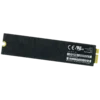
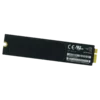
Generation 2
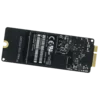
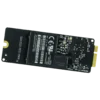
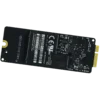
The second generation of Apple SSDs saw the expansion of the blade style drives into the MacBook Pro laptops and iMac desktops. The Gen. 2 drives were faster than than the previous generation but still used the mSATA III interface — finally approaching the maximum throughput capable of the SATA III specification.
The Gen. 2 drives were characterized by their use of two distinctly different drives; the shorter, wider Gen. 2A drive used in the MacBook Pro and iMac computers, and the taller, thinner Gen. 2B drive used in the MacBook Airs. Both Gen. 2A and 2B drives use the same mSATA 3 interface and the same 7+17 Pin connector type. Despite the use of identical connectors and interfaces, the drives aren’t truly compatible because the space allotted in each computer simply isn’t designed to fit the other drive type.
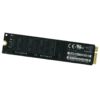
MacBook Pro (Mid 2012 - Early 2013)
With the release of the first MacBook Pro with “Retina” screen, Apple began including SSDs standard in the MacBook Pro line, and in fact the only storage device interface is the single 7+17 Pin SSD connector. The Gen. 2A SSDs used by these MacBook Pro laptops were offered in 128GB, 256GB, 512GB, and 768GB capacities, and manufactured again by Samsung, but also by SanDisk.
Both the 13″ and 15″ MacBook Pro laptops use the same drives, and either MBP can have any of the four SSD capacities installed.
iMac (Late 2012 - Early 2013)
The Late 2012 and Early 2013 iMacs had a rather different arrangement, with a traditional 3.5″ SATA III HDD standard, but the Late 2012 release also unveiled the Fusion Drive. Apple’s Fusion Drive pairs a larger capacity traditional hard drive with a smaller capacity solid state drive, offering much of the performance benefits of an SSD, but in a more cost-effective package. The operating system displays the two drives as a single drive to the user, but behind the scenes optimizes file storage so that files requiring more frequent access and files that see the most benefits from quick read times are stored on the SSD, while the majority of the files are stored on the HDD.
In order to utilize Apple’s fastest SSDs in the Fusion Drive setup, the iMac logic boards now included Apple’s proprietary 7+17 Pin SSD connector, in addition to one of the two SATA III connectors found in previous iMacs, allowing you to install any combination of SATA and Apple SSDs. It’s not necessary to use the SSD in the Fusion Drive arrangement, and the two drives can act independently of each other if desired. The SSD connector can use any of the Gen. 2A options (128GB, 256GB, 512GB or 768GB), while the SATA connector can accommodate any 3.5″ SATA HDD or SSD, or a 2.5″ SATA drive when using a 2.5″ to 3.5″ adapter.
Regardless of how the iMac was originally configured, both the iMac 21.5″ and iMac 27″ always had the 7+17 Pin connector present on the logic board, opening the door to later upgrade with a blade SSD. For anyone planning to upgrade their iMac that was not originally configured with a blade SSD, it should be noted that while the connector is present, the single screw that secures the SSD is missing. It’s a pretty uniquely shaped screw and you’re not likely to find it at your local hardware store, so make sure to purchase one before you go to the hassle opening up the iMac.
MacBook Air (Mid 2012)
As mentioned above, the Gen. 2B drives have a different form factor, but use the same interface and connector as their Gen. 2A counterparts. The 2B read/write speeds are noticeably slower, likely due to engineering constraints from the smaller footprint of the 2B drives.
Another likely result of the engineering constraints is the absence of a 768GB option. Samsung and Toshiba manufactured the Gen. 2B drives, which came in 64GB, 128GB, 256GB and 512GB options, all of which are interchangeable in the Mid 2012 releases of the MBA 11″ (model A1465) and MBA 13″ (model A1466).
Generation 3
It was clear with the Gen. 2 drives that mSATA’s 600MB/s limitation would not allow for further speed increases, so Apple’s next generation of drives began using a PCIe 2.0 x2 interface, bringing about the most substantial performance increases to date. Performance varies wildly depending on the combination of device, capacity, and manufacturer but the fastest Gen. 3 configurations can perform at more than double the speeds of the fastest Gen. 2 drives.
Generation 3 also saw a consolidation of the connector used, with almost all Gen. 3 drives compatible with all Mid 2013 through Mid 2015 releases of Apple computers. Of course, a few exceptions apply; notably the MacBook Air and iMac 21.5″.
Not only are the SSDs cross-compatible between the different devices, but the different computers do in fact share the exact same drives. The SSDs were manufactured by Samsung, SanDisk, and Toshiba, and the same manufacturer part numbers have been found on drives retrieved from all of the different computers. Samsung seems to have appended unique endings (/0A2, /0A4, /0A6, etc.) to drives used in different devices, but the drives all use the same flash controller and our testing has shown zero performance difference between them.
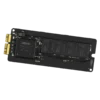
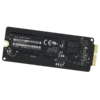
The Gen. 3 solid state drives are all the same form factor (which I’ll refer to as Gen. 3A), except for the 1TB SSD (Gen. 3B) which is the same length, but roughly twice as wide. All Gen. 3 drives use the same 12+16 Pin connector and all share a PCIe 2.0 x2 interface, except for the 1TB Gen. 3B SSD which has a PCIe 2.0 x4 interface, likely due to the larger physical size of the drive which allows for less engineering constraints.
There is one more drive that’s worth mentioning, more as a bit of trivia than anything, but there was also an extremely rare 768GB SSD included in some iMacs during this time. It shares the same Gen. 3B form factor and PCIe 2.0 x4 interface as the 1TB SSD and has comparable read and write speeds. This drive seems to have been phased out not long after Samsung began manufacturing it though, and you’re unlikely to find one unless you’re hunting for it.
All the Gen. 3 drives use AHCI technology, but many of the computers that shipped with Gen. 3 drives support NVMe SSDs as well, allowing for upgrades to later generation NVMe drives.
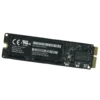
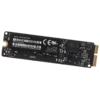
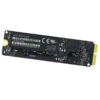
MacBook Air (Mid 2013 - Early 2014)
As with previous MacBook Air laptops, both the 11″ and 13″ laptops use all the same drives, which included 128GB, 256GB and 512GB capacities, leaving behind the 64GB option found in earlier MacBook Airs.
Interestingly, while the drives are all limited to a PCIe 2.0 x2 interface, the MacBook Air logic boards all support PCIe 2.0 x4, opening up the possibility to upgrade to the faster four channel drives found in Gen. 4.
Mac Pro (Late 2013)
The big revision to the Mac Pro desktop saw big changes to its storage devices as well. The Late 2013 Mac Pro was the first Mac Pro to have a solid state drive standard, the first to natively use PCIe storage, and to the dismay of many power users, the first to support only a single internal storage device.
The Mac Pro supports all capacities (128GB – 1TB) of Gen. 3 SSDs, but originally included drives with heatsinks that are attached with an extremely strong thermally conductive adhesive. It’s generally a safe bet that if Apple’s engineers decided it was necessary, it’s probably necessary, but it’s worth mentioning that the Mac Pros can use the heatsink-less SSDs found in other devices, and our internal testing showed absolutely no difference in SSD temperature when using drives with and without heatsinks, even under stress test conditions.
The Mac Pro’s logic board has the same limitations as the MacBook Air laptops, supporting a PCIe 2.0 x4 connection, allowing for improved performance with later four channel drives. The nMP also supports NVMe SSDs and can upgrade to some of the Gen. 5 drives when running macOS 10.10.3 or later.
MacBook Pro (Late 2013 - Mid 2014)
The Late 2013 and Mid 2014 MacBook Pro laptops both support all generation 3 drive options, and as with the MacBook Airs, while the included drives were PCIe 2.0 x2, the logic boards all support four channel PCIe connections.
The MacBook Pros also support the NVMe protocol, and like the Mac Pro, require macOS 10.10.3 or later.
iMac (Late 2013 - Late 2015)
The 21.5″ iMac originally shipped with either a 1TB SATA HDD, a 1TB Fusion drive (128GB SSD and 1TB SATA 3.5″ HDD), or a 256GB standalone SSD. The 27″ iMac offered the same 1TB Fusion Drive as the standard option, with optional upgrades to a 3TB Fusion Drive (128GB SSD and 3TB SATA 3.5″ HDD), or a standalone SSD in either 256GB, 512GB, or 1TB capacities.
Given that the iMacs have relatively ample free space inside, at least compared the rest of Apple’s product lines, it should come as no surprise that all drive capacities are supported in both the 21.5″ and 27″ iMacs. As with the previous generation, the 27″ iMac always included the PCIe connector on the logic board, but breaking with the previous iMac releases, the 21.5″ iMac only included the PCIe connector if originally configured with a Fusion Drive or standalone SSD when ordered. If a Fusion Drive was not selected at the time of purchase, there’s only an empty space where the PCIe connector would have been, and there’s no way to add the connector to the board, short of replacing the entire logic board.
The 21.5″ iMacs and the 27″ from 2013/2014 only support PCIe 2.0 x2 connections. All iMacs of this era support NVMe, but the speed increase is more limited in the 21.5″ iMacs and the 2013/2014 27″ iMacs, where the two channel interface acts as a bottleneck.
Mac mini (Late 2014)
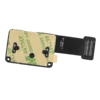
Late 2014 was the first Mac mini to support Apple’s blade solid state drives, but it’s extremely limited internal space required a unique solution in order to connect the drive to the logic board. Rather than a 12+16 pin PCIe connector on the logic board where the SSD would connect directly, the Mac mini positioned the SSD on the rear of the plastic hard drive carrier, off to the side of the board, and required a flex cable to connect the SSD.
The flex cable has the 12+16 pin female connector on one side and a female 40 pin mezzanine connector which attaches to the 40 pin male connector on the motherboard. This was the first and last time Apple used this smaller connector for PCIe connections in any of their product lines.
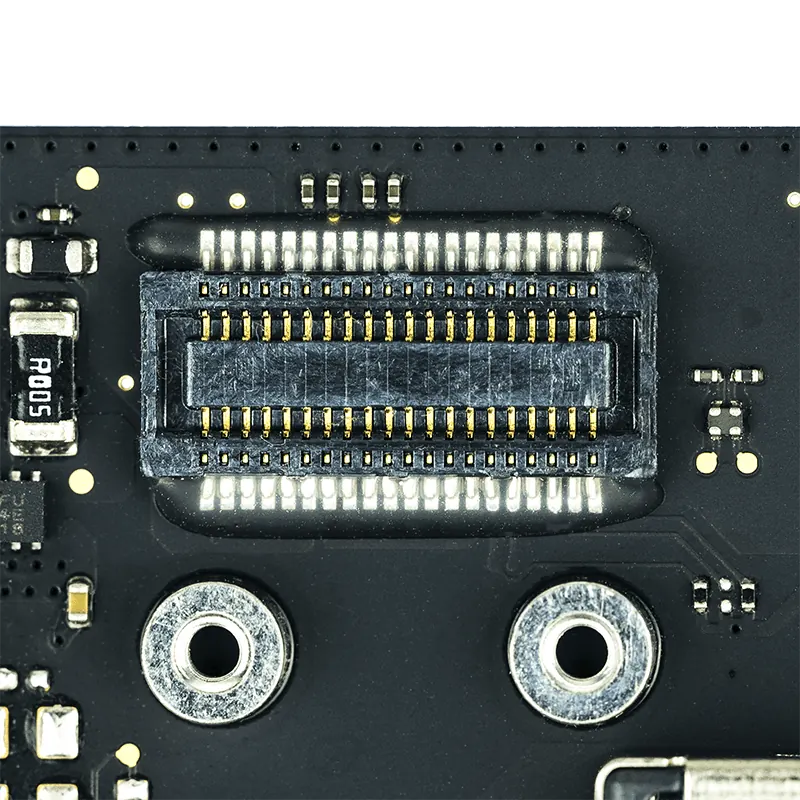 PCIe connector on the Late 2014 Mac mini
The connector is present on the board regardless of which storage configuration was initially ordered, so it’s possible to add a PCIe SSD to all Late 2014 Mac minis. If the Mac mini wasn’t originally configured with a Fusion Drive or standalone SSD from the factory, the flex cable will need to be purchased in order to add an SSD afterwards.
The Mac mini motherboard only supports a PCIe 2.0 x2 interface, but does support an upgrade to NVMe SSDs, but like the 21.5″ iMac, the speed increase is a modest 10-15% due to the two channel PCIe bottleneck.
Generation 4
With the release of the first Early 2015 MacBook Air and MacBook Pro laptops, Apple unveiled its fourth generation of blade SSDs. Gen. 4 included a few variations, but for the most part was again used across all the product lines of the time, and even stuck with the same 12+16 Pin connector found in the Gen. 3 drives, making the Gen. 4 drives a great option for upgrading earlier devices.
The Gen. 4 drives all used a PCIe 3.0 x4 interface, with the exception of the drive used in the MacBook Air 11″ which used a newer version (Gen. 4C) of the PCIe 2.0 x4 drives found in the previous generation. I’ll be referring to the 128GB, 256GB and 512GB Gen. 4 drives as Gen. 4A, and the larger 1TB drive as Gen. 4B, similar to the Gen. 3B 1TB drive from the previous generation.
Generation 4 brought massive increases in speeds when compared to their Gen. 3 counterparts, with read and write speeds that are roughly twice that of the previous generation. All the laptops and desktops released during this period could make use of the four channel PCIe connection, but only a few select models could reap the benefits of the PCIe 3.0 technology. For devices that did support a PCIe 3.0 connection to the SSD, read and write speeds were more than doubled. All in all, the fourth generation of solid state drives represented another monumental leap in drive technology.
Then SSDs were manufactured exclusively by Samsung this time around, with the exception of the Gen. 4C drive from the 11″ MacBook Air which was manufactured by Toshiba. The Samsung drives are commonly referred to by the identifier of their flash controller, dubbed UBX — or as it’s printed on the drive, SSUBX. This is quick an easy way to identify the Generation 4 drives from the Gen. 3 Samsung drives which have SSUAX printed on the labels.
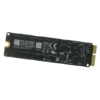
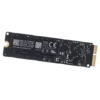
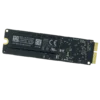
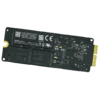
MacBook Air (Early 2015 - Mid 2017)
The Early 2015 MacBook Air 11″ was the last release of the 11″ laptop form factor, and while most of the hardware saw only incremental improvements, the SSDs were radically different from the previous generation, and unique amongst the Gen. 4 drives. These new drives, which I’ve distinguished as Gen. 4C, still use the PCIe 2.0 interface, but expanded from two to four PCIe lanes, and most notably, use the more performant NVMe interface, the first Apple SSDs to do so.
And although using the the same 12+16 pin arrangement and form factor, their firmware renders them incompatible with earlier MacBook Air laptops. The new drives were also now branded “Apple” rather than with the third party manufacturer’s name, although the flash chips on the SSD make it clear that Toshiba and SanDisk were manufacturers.
On the logic board side, the 2015 MacBook Air 11″ uses the same PCIe 2.0 x4 interface found in previous releases, and can also use the more common PCIe 3.0 Gen. 4A drives, albeit limited to PCIe 2.0 speeds. In fact, if the 11″ MacBook Air was configured with a 512GB SSD from the factory, it already included the same Gen. 4A drive found in other Apple computers of the era.
The 13″ MacBook Air used the same Gen. 4A drives as the rest of Apple’s product lines, but didn’t support the PCIe 3.0 connection the newer drives were capable of. Despite the lack of PCIe 3.0 support, the Early 2015 release still saw read/write speeds that were 90-120% faster than the 2013/2014 models. The same Gen. 4A drives are still in use in the most recent Mid 2017 release.
Like the MacBook Air laptops before them, the Early 2015 – Mid 2017 MacBook Airs lack the space to fit the wider 1TB SSDs, and are limited to the 128GB, 256GB and 512GB options.
MacBook Pro (Early 2015 - Mid 2015)
The 2015 releases of the MacBook Pro laptops were also relatively minor upgrades, but again the SSDs brought about a huge speed boost, especially for the 15″ model A1398. Both the 13″ and 15″ computers support the full range of drive capacities and supported four channel connections, but the 15″ MacBook Pro also supported PCIe 3.0.
Both the 13″ and 15″ MacBook Pros also support the NVMe protocol and upgrading to Gen. 5 SSDs can bring a modest speed boost to the 13″ model A1502, but the 15″ model A1398 with its PCIe 3.0 connection really allows the NVMe technology to shine. Read speeds increase by ~40% and write speeds can increase by ~60%.
iMac (Late 2015)
The Late 2015 iMacs see a lot of the same trends found in earlier iMac releases. The 21.5″ iMac only has a PCIe connector on the motherboard if the computer was originally configured with a Fusion Drive or standalone SSD. To the dismay of many people, the 1TB Fusion Drive now only included a 24GB SSD paired with the same 1TB SATA HDD, and continued offering an option for a standalone 256GB SSD. The 27″ iMac also tweaked the 1TB Fusion Drive to include the smaller 24GB SSD, but the 2TB and 3TB Fusion Drives were still paired with the 128GB capacity drives. The 27″ iMac also continued offerings of 256GB, 512GB or 1TB standalone SSDs.
You might have noticed that there had not been a 24GB SSD option until this point in time, and in addition to bringing about a new capacity, the 24GB PCIe 3.0 x4 SSD was also Apple’s first removable NVMe SSD. Another interesting oddity with the 24GB drive is that it’s actually designated as a 32GB drive on its label, with 25% of the available space reserved and unusable to the user. All SSDs have some portion of their capacity reserved to replace bad blocks that have become unreliable with time; a natural wearing down of drives that occurs during the writing process. Reserving a quarter of a drive’s capacity is highly unusual, but considering that the drive is designed to act as a cache for the Fusion Drive and will likely take a lot of wear, it makes total sense that a large segment of the drive would be allocated to replace worn out sections. Unfortunately, this is the only NVMe drive available during this period, and NVMe SSDs didn’t become widespread in Apple’s lineup until Gen. 5.
All of the SSDs found in the Late 2015 iMacs are of the new PCIe 3.0 x4 variety, but the A1418 only supports a PCIe 2.0 x4 connection. The 27″ iMac, on the other hand, is the only device other than the 15″ MacBook Pro to support a PCIe 3.0 x4 connection. Both iMacs support the NVMe protocol though and can upgrade to later Gen. 5 SSDs for a big speed boost.
Generation 5
The fifth generation of Apple SSDs introduced a few major changes. On the performance front, all the Gen. 5 SSDs support the NVMe protocol, and the devices that included these drives all support PCIe 3.0 x4 NVMe connections. These two changes meant that not only are the Gen. 5 drives quite a bit faster, but all the Apple computers of this era were able to reap the full benefits.
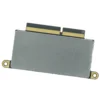
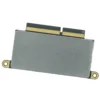
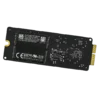
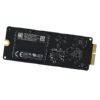
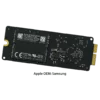
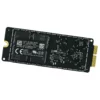
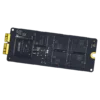
Gen. 5 also saw changes to the form factor, now with two distinct SSD types. The Gen. 5A drives used an all-new, significantly smaller form factor, as well as a new 22+34 Pin connector. The Gen. 5B SSDs continue to use the 12+16 Pin connector found in the Gen. 3 and Gen. 4 drives and have the same form factor found in the Gen. 3B and Gen. 4B 1TB drives. Despite the larger connector on the Gen. 5A drive which one might assume could provide more throughput and performance, the Gen. 5B drives have superior read/write speeds, topping out at a whopping ~2,700 MB/s read speed and ~2,350 MB/s write speed.
The generation 5B lineup didn’t just bring massive speed increases, it introduced a major increase in capacity as well with Apple’s first removable 2TB SSD. While the length and width are the same as the 128GB Gen. 5B SSD, the 2TB SSD doubled the maximum storage capacity available in an Apple blade SSD, and because its connector and form factor remained consistent with previous generations, the 2TB drive makes for the biggest, fastest OEM drive that can be used to upgrade Apple devices dating back to 2013.
MacBook Pro (Late 2016 - Mid 2017)
Starting with the Late 2016 release, Apple began releasing two versions of its MacBook Pro laptop: the non Touch Bar (nTB) version, and the version with Touch Bar. Only the 13″ MacBook Pro was offered in the nTB version, and notably, the nTB version is the only MacBook Pro of this release that has a removable SSD. All of the MacBook Pro laptops with a Touch Bar share the same PCIe 3.0 x4 NVMe SSD, but the SSD is soldered to the logic board and is not removable/replaceable. The only way to upgrade the storage on the MacBook Pro with Touch Bar is to replace the entire logic board.
The MacBook Pro 13″ that does have a removable SSD used the Gen. 5A SSDs, and the Late 2016 and Mid 2017 releases are the only two computers to support these drives. The Late 2016 MacBook Pro offered choices of a single 256GB, 512GB, or 1TB SSD, while the Mid 2017 release also introduced a 128GB option, and while nearly all of the drives are compatible with both the 2016 and 2017 releases, there are a couple exceptions.
After extensive testing with every Gen. 5A drive we could get our hands on, it appears that 128GB SSDs with part numbers beginning with 656-0074 and 256GB SSDs with part numbers beginning with 656-0076 are only compatible with the model A1708 laptops from the Mid 2017 release.
If you’ve got this far and are looking for more, I’m sorry to say this is the end of the line. This post has attracted more attention than our average post so I’m currently in the process of adding more and better information. I’m planning on adding lots more info, speed tests, part numbers and more upgrade guides. This post ain’t dead yet, so check back soon.
In the meantime, if you have and questions or comments, leave them below because I probably already have the answer.
Like this post
About the author

338 comments
Leave a comment
Recommended posts
High Sierra and Testing RAM
With macOS 10.13, otherwise known as High Sierra, Apple introduced an ambitious EFI update. Several of the changes include: the introduction of the Apple File System, support for NVMe drives, and the usual batch of security updates. However, these EFI updates can cause some unwanted behavior when you test your Apple computer’s memory. At Beetstech, we use a long-time industry standard, MemTest86 to perform a comprehensive test of each computer’s RAM.
But never the type to blindly accept test results, strange testing outcomes led us to discover a bug in MemTest86 affecting computers running the new EFI firmware. In short, the newly updated EFI causes MemTest86 to incorrectly fail certain tests. But there is good news: while normal operation of MemTest86 is limited under these new EFI updates, we also discovered some simple workarounds for testing your Apple’s memory in MemTest86.
So let’s dive into how we discovered the MemTest bug, devised a reliable work-around, and get into some nitty gritty details of MemTest86 operation.
MacBook Air Power-On Pads – Location & Use
They go by “jumper pads”, “short-circuit pads”, “power pads”, and “power-on pads”. Whatever you call them, there are two bits of metal on your MacBook logic board that can force your laptop to boot up, even if the power button won’t do the trick.
OEM MagSafe Chargers vs Cheap Imposters: Teardown for Truth
Anywhere premium products are produced, there are unsavory folks trying to make a quick buck selling cheap knockoffs. It happens in every industry, from clothes to food to tech. But in recent years, counterfeit electronics have surpassed nearly all other categories of counterfeit goods by dollar value, and Apple, being the de facto high-end electronics manufacturer, makes for a prime target.
But you’d never be caught buying counterfeit electronics, because you can tell the difference, can’t you?
Your Hard Drive Cable Is A Ticking Time Bomb
Owners of a Unibody MacBook Pro laptop are probably already aware that failure of the hard drive flex cable is a common issue. While it affects just about the entire Unibody lineup, the Mid 2012 MacBook Pro 13″ (Model A1278) is especially prone to this type of failure.
What is it that makes the Mid 2012 release special in this regard? A design flaw in the flex cable that seems to be compounded by the properties of the aluminum housing.
Our repair services department noticed this issue when they’d replace a bad cable, only to have the customer return a few months later with another bad cable. And possibly again with yet another bad cable. It didn’t matter if we used a used cable or a new cable in the replacement. Customers kept returning with the same persistent issue. We had to figure out what was causing the issue and find a solution.
Do the Late 2013 15″ MacBook Pro’s have the capability to utilize the PCIe x4 SSD’s? In other words, if I put a 2015 SSD into my Late 2013, will I be able to take advantage of the higher speed from x4 vs. x2 bandwidth?
Sadly, they do not have the capability to use these extra channels.
I have a correction for my previous comment.
We recently tested the 2015 PCIe 3.0 x4 drives in a Late 2013 MacBook Pro, and were surprised to find that the MBP recognized the four channel link speed of the newer drive. The read/write speeds were around 80-90% faster with the new drive in the older machine, and have prompted a new round of testing for us to perform. So the new answer is, absolutely yes!
Does it wake from sleep? I have done the same with 2TB SSPolaris in Late 2013 MacBookPro 15″, speed is great but it doesn’t wake from sleep reliably.
Do the external monitor connectors still work?
I confirm that the PCIe 3.0 x4 drive in a Late 2013 MacBook Pro works smoothly. Read/Write speed before the update were 700/650 MB/s; after the upgrade 1450/1220. It does awake from sleep reliably.
That’s amazing to hear! Could you provide the exact name of the SSD? Have you bought it from Beetstech?
This does not seem to be true for the 13″. Boot-rom issues force you to disable hibernation mode, or it freezes upon deep sleep.
tho that is “hackable” with firmware update…
More info here than I’ve been able to find anywhere else yet. But still I have no idea how to source a replacement blade ssd for my “late 2015” iMac 27. Currently it has a 1TB fusion drive with a wimpy 24GB ssd component. I’d like to go up to 512GB or 1TB NVME PCIE blade ssd. The connector is still a mystery to me. I’m trying to solve that without having to open the machine first.
Hey John. Glad you found the info useful, but yes it’s still a bit incomplete and I’m currently in the process of improving the article with more info.
Your iMac uses the 12+16 pin connector mentioned above, and we just got some of the 1TB NVMe SSDs from the 2017 iMacs in stock. They use the same 12+16 pin connector and are 100% compatible with most every device that originally supported that connector type.
We’re still doing some final testing to figure out the complete list of devices that support these new NVMe drives, but your Late ’15 iMac definitely supports the new SSDs. The link to the drive is below:
https://beetstech.com/product/solid-state-drive-1tb
Wow! The comments here sound promising!
I read the one about the 2015 PCIe 3.0 x4 drives working in a Late 2013 MacBook Pro and this one about the NVMe SSDs from the 2017 iMacs being 100% compatible with most every device that originally supported the 12+16 pin connector…
Now my question is:
Will the 2TB NVMe SSD from the 2017 iMac (https://beetstech.com/product/solid-state-drive-512gb) work in my LATE 2013 Macbook Pro 15″?
This would be amazing!
Did u figure it out? I have a nvme drive for your apple for sale.
Mr. Cheney, I came to this article looking to find out more about the Blade SSD in the 2014 Mac Mini so that I can research drop-in compatible replacements. Unfortunately I have found that you’ve omitted the Mini entirely.
Hi Michael. I’ve now updated the post with a section on your 2014 Mac mini. Natively your Mac mini used a PCIe 2.0 x2 AHCI Gen. 3 drive, but you can also upgrade to the Gen. 5B PCIe 3.0 x4 NVMe drives. They’re a bit pricey at the moment, and you’ll only see about a 10-15% speed improvement, so it might not be worth it for you.
Because your mini doesn’t have a regular SSD connector on the board, you’ll also need to purchase a special cable in order to connect the SSD. The link to the cable is below:
https://beetstech.com/product/ssd-cable-connector-821-00010-a
What about upgrading to the Gen4 SSD that also supports NVMe ?? Can’t get my Mac Mini to recognise NVMe capability of this SSD ???
I have a question regarding this connectors. I have a hard drive that I need to format so I can use it again. Is there a SSD to USB that works for this particular set of ssd’s? I have tried several from Amazon but none of them seem to work.
Thanks,
Hey Fabio. Unfortunately your experience is all too common.
I don’t have any experience with USB adapters in particular, but I’ve used quite a few SATA adapters and it seems most of the adapter boards out there are terrible quality. We’ve ordered countless adapter boards that were DOA or failed within the first few weeks of use, so unfortunately I don’t have anything that’s been reliable enough that I would recommend it.
We’ve had so much interest in these adapter boards that we’re working on sourcing some right now. If we can’t find anything that’s up to par we’ll probably just end up making them ourselves! I’ll keep you updated on our progress.
I have the same question. Any update on this? A friend suffered a catastrophic liquid spill on her 2015 13″ MBP and I would like to try to recover files off the SSD for her. I don’t have a donor machine to put the drive in so my only hope is to find a USB drive. I would prefer not to spend USD $99 on this https://eshop.macsales.com/item/OWC/MAU3ENPRPCI/ when I don’t know for sure if the drive is even good or not.
Thanks Larry. No update on this quite yet. We sourced some more of these that did not live up to their claim and certainly did not meet our standards. You may be able to save some money by looking into an Apple 12+16 to m.2 adapter then putting that into an m.2 to USB. It’s kind of an adapter daisy chain and we haven’t tested this yet but the approximate cost would be in the $50 range so some savings. We’re working with some other vendors and will hopefully have a solution soon.
I purchased one of these just last week. It works but I get unexpected ejections. It’s plugged into a late 2014 iMac with High Sierra. I also have one one their TB2 docks that has sporadic disconnecting issues as well since the day I bought it.
I would never trust the OWC/MAU3ENPRPCI with any data I valued!
Yes
Ditto to what Fabio said! Thanks
Hello Cody
I am so thankful to see this article you posted, like John Albergo said, this article has most useful info that I have saw from other websites, it helps me a lot.
Thank you
But I still have some questions that I hope you could help me out.
Question 1.
In the article, you mentioned NVMe is supported for
Macbook Pro after Late2013
iMac after Late2013 (21.5” has two channel bottleneck)
Mac Mini after Late2014 ( has two channel bottleneck)
Mac Pro after Later 2013
And you also mention NVMe is supported when running macOS after 10.10.3
But then I saw some articles said that NVMe is supported after macOS 10.13 high sierra, can you help to clarify?
————–
Question 2.
I saw PCIe SSD sell in beetstech has Lifetime warranty – “We guarantee this product for as long as you have it.”
Is it a limited warranty or does it means if I bought a PCIe SSD from beetstech, and it become defected after 3 years, then I can get an replacement from beetstech for free of charge?
ps: I asked this because I will have continuously demand for Mac PCIe SSD.
————–
Question 3.
For Gen 3.A PCIe 2.0×2 SSD, the read/write will be around 600~700MB/s in MBP, MBA, iMac, Mac Mini, Mac Pro.
Do you know fast is it when you put Gen.3A-1TB, Gen.4A-128GB/1TB and Gen.5B-1TB in those computer?
If you know, or if anyone who saw this post and happened to know the speed, please help to fill up the info below
“very much appreciated “
Gen.3B-1TB
MBP:
iMac 27”:
Mac Mini: read 720MB/s, write 680MB/s
Mac Pro:
Gen.4A-128GB
MBP:
MBA: read 1450MB/s, write 610MB/s
iMac 27”:
Mac Mini: read 750MB/s, write 610MB/s
Mac Pro:
Gen.4A-512GB
MBP:
MBA: read 1450MB/s, write 1350MB/s
iMac 27”:
Mac Mini: read 750MB/s, write 750MB/s
Mac Pro:
Gen.5B-1TB
MBP:
iMac 27”:
Mac Mini:
Mac Pro:
Thanks for the praise Alan. I’m glad people are finding it useful because it’s ended up being way more work than I thought it would be ?
I think I’ve got you covered on all three questions.
Answer 1:
NVMe support for OEM SSDs only requires macOS 10.10.3.
High Sierra 10.13 is only required to support third party NVMe SSDs which require adapters to use.
Answer 2:
The lifetime warranty truly means for the life that you own the drive. If the SSD fails 3 years down the line, or 10 years down the line, we’ll absolutely replace it free of charge.
Answer 3:
We actually have a ton of speed test data that I still need to add to this post, so I’ll get back to you with the examples you’re looking for. There aren’t too many options for drive speed testing software on macOS, and I wasn’t satisfied with a lot of the more commonly used software like Blackmagic, so we opted for a customizable open source software called IOzone which we were able to modify to meet our needs.
I’ll add that data and our testing methodology shortly and update you when I have it ready.
Thank you Cody for the reply.
Didn’t know you reply at the same day until I came back to see if there is any update on this article now.
I thought the reply will automatically goes to my email, but it didn’t.
By the way, do you know if the original PCIes SSD included in the 2017 iMac 27″ are PVIe 3.0 NVMe SSD or just regular AHCI PCIe 3.0 SSD?
Thanks
The SSDs in the 2017 iMacs (both 21.5″ and 27″) are shipping with the Gen. 5B solid state drives (PCIe 3.0 x4 NVMe).
The 2017 iMacs are the only source of Apple NVMe SSDs with the 12+16 pin connector. These drives can be identified by SSPOLARIS printed on their labels.
I own a 27 inch 5k 2017 and actually certain places you can get the ssd and that’s the most expensive version wich is silly to bye when you can easily put ram in . All of them came with the FUSION DRIVE or hybrid but still spins.. can use please clarify … I had a place install 1tb Samsung sata lll 860. but I’m not happy at all seems slower there’s a 2 sec. wait from when I click and pull up
I just found your amazing post on Apple SSD’s and it is a treasure trove on informations! Great work and thanks!
I have a MBP 13″ Retina, Mid-2014, and after reading your article, i still have a few questions:
1) Will the Mid-2014 MBP be able to accommodate the 12-16 pins 1 TB SSD Gen3B or 5B? Since the drive is larger, is there room inside the laptop?
2) I understand that the MacBookPro 11,1 is has PCI 4x, and NVMe. Is there a substantial speed advantage to go with the Gen 5B 1TB model over the Gen 3B, since they are quite a bit more expensive?
Thanks!
Hi Louis
1) Yes, all of the MacBook Pro Retina laptops can accommodate the larger 1TB SSDs. Of all the computers in Apple’s lineup, only the MacBook Air laptops cannot fit the 1TB SSDs.
2) The 5B will only really be a benefit because of the NVMe, but from the speed test results we have, the 5B drive is ~30-40% faster than the Gen 3B SSD when installed in your MBP. It’s a pretty substantial improvement, but whether it’s worth it or not really depends on how you use your laptop and how read/write intensive your use is.
This is a great and only article about Apple SSD that I can find on the web. I was wondering if you could share some information regarding the speed test results. Or if you know a great source, please share some information. Thanks!
There are voluminous threads over on the macrumors forums about this very same issue that are currently being updated. Definitely a read if you are looking to upgrade as I am.
Thank you so much for this incredibly useful guide. I only can confirm that this is the best article by this topic on the Internet. It clarifies a lot and super usefull for those who look for upgrade opportunity.
I wonder if you have plans about “MacBook Pro 13-inch SSD Upgrades” table? It’s mentioned in two different paragraphs in the article but I want to be totally sure if MBPr 13” late 2013 can utilize PCIe 2.0 x4 NVMe SSD? Thanks in advance.
Alex! Thanks for your feedback. We have plans to update this blog entry and will get that info in a table. The late 2013 A1502 can utilize PCIe 2.0 x4 drives. Many users will go with the SSUBX PCIe 3.0 x4 drives. You’ll still be operating at PCIe 2.0 but the two added PCIe lanes will really make that system scream.
At X4, do your Thunderbolt ports work still? For Mini-DP connected monitors?
Hello from Paris France
i am looking for a NVMe SSD who would fit with an imac 27 5k i7 Kaby lake … (18.3) early2018
I replaced the 2giga by a SSD, now I would like to increase the 128giga PCi a little small for me!
merci !
Great article, many thanks for posting this!!!!
Thanks Duncho! We hope you found it useful.
Cody, do you know whether my MBA 6,2 (mid 2013) which original 256GB SSD had controller link width x2, should support link width x3 with Transcendent TurboJet 820 960GB SSD? I have Sierra OS X installed on my MBA. Would upgrade to High Sierra increase the speed to x3 (NvME)?
Do you think I should rather go to Samsung SSD and upgrade to High Sierra in order to get full performance of chipset controller?
Also, could you please advice compatible and high speed / low power consumption 1 TB SSD for my MBA?
Many thanks!!
Dan
Great article. I’m left wondering something about the 2015 MacBook Pro Retina. I’m considering purchasing either the 13″ early 2015 MacBook Pro A1502 or the 15″ mid 2015 MacBook Pro A1398. In either case I will likely go with the highest memory and processor speed with a 1 TB drive. I like the 13″ for size and lower weight but am concerned about longevity vs the 15″. You state that both the 13″ and 15″ support NVMe, but the 15″ supports PCIe 3.0 (implying that the 13″ only has a PCIe 2.0 interface). Also stating that because of the 15″ with PCIe 3.0 it can really make use of the Gen 5 SSDs. But here is my confusion: Mactracker lists both the early 2015 13″ (A1502) and the mid 2015 15″ (A1398) as having a hard drive interface of 8.0 GT/s PCIe x4. Since based on the chart in this your article 8.0 GT/s only corresponds with PCIe 3.x, doesn’t this mean the 13″ should get the same boost ability from a Gen 5 drive as the 15″? The MacBook Pro i want to replace is now eight years old and I have upgraded it along the way. So the answer to the question above will help me determine which to purchase for longevity. Thanks!
Thanks Kevin! The short answer is Mactracker is wrong. The 2015 13″ A1502 has a PCIe 2.0 x4 connection and would be limited to 5.0 GT/s. The 2015 15″ A1398 is the one to get if you wanted to reach 8.0 GT/s. We’ve tested all of these setups in person and I can tell you personally that the Gen 5 1TB POLARIS drive is a beast in the 2015 A1398.
Hi Wes! I have a A1502 13″ , what drive would you recommend for it? I only need 256 or 512 disk.
I have seen some PCIe to mkey adapter so I can use other M.2 disk in my macbook, do you know if they would reduce the performance?
so can the 2015 13″ still use the gen 5 1tb drive and is it better to use becasue of NVMe
Cody, truly incredible and diligent work on this guide, I am extremely impressed.
It is quite clear that you are the only man who can finally answer this question, so here I go.
I was fortunate enough to be able to purchase a brand new factory sealed 2017 MacBook Air
model number MQD32LL/A from Best Buy on one of their one day sale’s for $600.00
I truly didn’t need the machine, but just couldn’t pass up the opportunity at that price.
Now that I have it the 128Gb SSD that comes from the factory is clearly inadequate my use.
If money is not a constraint in my decision to upgrade the SSD what is the ABSOLUTE FASTEST
as well as LARGER CAPACITY SSD that you recommend as an upgrade path for this entry level
MacBook Air.
I will thank you now, as after reading your SSD guide I know your opinion will not only be the right
one, but finally I will not need to take the time to double check a recommendation, from some inexperienced
soul.
Regards and keep up the excellent work, we all need information like you have been generous enough to provide.
Unfortunately, your options are rather limited because of the available space on the MacBook Air logic board. The only real speed upgrade would be the Gen 5B drives which would allow you to make use of the NVMe protocol, but all capacities of those drives are the larger form factor that won’t fit on MBA boards.
You can still upgrade the capacity up to a 512GB though. You’d be looking at one of the Gen 4A 512GB SSDs.
Cody,
Out of respect for your guide I separated my other question from my question about the SSD,
as I was not sure if you wanted it included with posts that were more specific to your guide.
Again, I am sure you’re opinion and recommendation will serve me well.
If you were going to use the SD slot as a storage option, even though it is not secure and potentially
volatile, how would you go about maximizing the slots deminished potential, in the most productive fashion.
Again, I thank you in advance for your kindness and incredibly hard and diligent work in providing us, the average
user, direction in what Apple makes finding out the correct information more then difficult…
Regards…
Adding an SD card for expanded storage is a good way to take advantage of the available slot. One of the most important things to do if your card is greater than 32GB is to format it properly so your Mac can use all the storage space. Many times SD card manufacturers ship them with a FAT32 file system which is fine up to 32GB but otherwise you’ll want to format it Mac OS Extended. Companies like Transcend make SD cards that will fit completely inside the slot to avoid accidental removal. As long as you understand the limitations and format the card properly you will have success. Thank you Binkis!
Will the SSPOLARIS SSD from a 2017 iMac fit a Late 2014 iMac?
The SSPOLARIS SSD won’t work properly in a 2014 iMac. If the computer goes to sleep while using the SSPOLARIS drive it will cause a kernel panic. Let me know if you have any other questions, thanks!
I’ve put an SSPOLARIS SSD in my late 2014 iMac 27 inch……. working fine (aside for the x2 v’s x4 lane issue I’ve commented about earlier). Not noticed any issues with sleep.
Nathan, thanks for sharing your experience. This is good information. It’s been a bit since we tested the POLARIS drive in the 2014 iMac 27. We definitely got some kernel panic on wake from a few different setups but this is great news. Keep us apprised of any findings, if you would. We’re adding this to the list of systems to retest.
I wrote a reply earlier but it looks to have disappeared? To answer your question, yes, because I’ve done it. See my other comment earlier today about the link width – thats the only ‘issue’ I’ve noticed using an SSPOLARIS with my late 2014 imac.
yes
yes
Hi – thanks for this awesome page, a proppa treasure trove of info! I’m struggling though with the iMac late 2014 27inch 5k (15,1). Above you say that this supports 4 lane apple SSD’s (which pushed me to attempt an upgrade), but everything I’ve seen points to it only supporting 2 lanes. It comes with an SSAUX SSD (2 lanes). From discussions on a separate forum, I know that people have tried an SSUBX 4 lane model SSD and they still only see 2 lanes. I’ve upgraded my original SSD with a 512gig SSPOLARIS SSD and I see the switch to NVME but I still only see 2 lanes as the link width. Are we doing something wrong, or is the info on your page above incorrect (where you say “The 21.5″ iMacs only support PCIe 2.0 x2 connections, but the 27″ iMacs support four channel PCIe 2.0 drives and can see speed improvements from using later Gen. 4 drives”)? Or are we interpreting ‘support’ as meaning you get 4 lanes instead of 2 and thats not what you mean? We all see moderate speed improvements using later model SSD’s, but nobody seems to be getting 4 lane support.
Nathan, I’m getting this information updated. Looking at our testing data you are correct and as I said above thanks so much for contributing and helping us improve our page!
Thanks for this guide. I had a question about the mid 2012 MacBook Air. I had been looking to upgrade my ssd and had been hearing of issues with using non proprietary drives when I was looking into options like the Samsung Pro 860. While you explained everything pretty thoroughly, I still wanted to know if the drives available here are comparable to the Samsung Pro 860 manufacturer model sold on Amazon? And what are the main differences between this and the Transcend JetDrive 520? Based on what I am reading, the products here seem to be, essentially, factory sourced upgrades that will fit directly in my machine without the need for adapters? Because my biggest concern was reading about the unreliability of the pin adapters. Or course I would like to avoid hard drive failures.. I am just trying to see my best available options!
Thanks for the comment and question, John! You’re correct that the products here are factory sourced upgrades and do not require any adapter. It’s wise to question the reliability of pin adapters found online. The companies making adapters offer no testing data or compatibility information. So far none of the adapters we’ve sourced have lived up to the manufacturers claims.
I pulled our 2012 MBA upon reading your question because I wanted to throw in the 512GB Apple drive manufactured by Samsung for a quick test. I’m seeing read speeds at 449 MB/s and write speeds at 390 MB/s. This is a great improvement over the 64 and 128 GB Toshiba drives that may have come with a 2012 MBA. The performance with this 512GB drive is on par with what you’d see from a quality aftermarket SSD such as the Transcend JetDrive 520.
The Transcend JetDrive 520 is the best choice when it comes to non-Apple SSDs available for your 2012 MBA. It doesn’t require any pin adapter and has slightly faster write speeds than the 512GB Apple drive. Transcend also includes an enclosure to place your old SSD in to use as an external drive.
The Samsung 860 Pro MSATA SSD is a good drive but would require a third party pin adapter for use in your MBA. Samsung’s Pro models are geared for heavy read/writes and offer a much longer warranty as opposed to their non-pro counterparts. In terms of speed they don’t offer much as most of these drives will be close to reaching the limit of SATA III.
You definitely have a few options available. I’m thinking higher capacity Apple or the JetDrive 520 would be the way to go.
Appreciate this thorough answer as well as you running those tests. This machine actually has a 256GB Samsung SSD in it factory standard. I will try and run some tests on my machine to see how much different the 256 and the 512 are. I believe I might go for the JetDrive because of the faster write speeds and the conversion of my old drive to a decent sized SSD. But I actually have a few more machines and will certainly be buying from here in the future. If there are any signs of issues with the JetDrive I will be back here because you probably can’t go wrong with the OEM. Again thanks for being so helpful.
Also quickly wanted to ask which software you are using to do the test just so we have the same benchmark to go by..
I used Blackmagic Disk Speed Test to test the 512GB Apple SSD. It’s fast and gives pretty solid results. We have had some inconsistent results, primarily with the NVMe drives, so we’ve been developing our own testing software for SSDs that we hope to make available this year in conjunction with added content to this blog. Thanks John.
Will the 2TB NVMe SSD from the 2017 iMac (https://beetstech.com/product/solid-state-drive-512gb) work in my LATE 2013 Macbook Pro 15″?
Has this ever been answered?
I installed the 2TB SSPolaris in our Late 2013 MBPr 15″ and I can say it works great. Black Magic around 1500 RR. However there is one problem, it doesn’t want to wake from sleep. I have reset PM and Pram but just doesn’t like to wake up. Ideas anyone on getting sleep to work reliably?
This is apparently an issue with “hibernation” mode sleep. You can fix your issue using the following terminal command: “sudo pmset standby 0”. This will prevent your MBPr from entering “hibernation”, or “deep” sleep mode. It will still enter “normal” sleep, just not the nearly-off hibernate mode. A side effect of this fix is that it consumes a little battery capacity while sleeping. I have heard it is around 3% per 24hr period.
Correction: Most rMBPs lose 1%/hour in “normal sleep” mode, which would be around 24% (NOT 3%) over a 24 hour period. It will be dead in 3-4 days. As a contrast, it has been claimed that a Mac in standby mode will use up its battery in 30 DAYS.. So this IS a significant concession for the ability to use NVMe SSDs on these machines.
yes
Hi 🙂 i have here a Mac Pro 5.1 Twelve cores and im lookin for a dual SSD pcie solution bootable with 10.9.5 and 10.12, any suggestions? thx in advance 🙂
What’s the actual speed difference of various size SSD’s? Wish this was part of geekbench!!
Funny how the traditionally assumed “best” Macbook Pro configuration uses a slightly slower drive connection (5A) – you’d assume the highest specs for cpu are matched for drive speed. That said I’m quite curious what the differences
Excellent article Cody! Very thorough and I love the detail you provide which Apple sadly doesn’t.
Do you have or can you recommend a link that explains the issues surrounding why a mac will boot from some SSD PCIe drives but not from others? I’m trying to learn what a drive needs in order to boot without an external boot manager (Obviously I’m referring to non-mac SSD drives and I am aware that they need pin converters … but the cost savings are just too good to not make an attempt at an non-apple drive upgrade).
Thanks again for the article, you obviously invested a lot of time into it and we appreciate it!
So can I take my 128GB 2015 A1502 retina a model pcie SSD and out it.in an internal 2.5″ case for say an older 2012 Mac? I have an extra 128GB I’d love to put in a machine and I believe it’s fit as far as the length because it’s the shorter style
.
Any options for an I ternal pcie ssd to 2.5″ sata enclosure?
Hi,
First of all I have to say that this is absolutely the best manual of Apple SSDs in the entire internet. Thanks a lot for this! Moreover, I would appreciate if someone could please help me a bit with advice.
I have a MacBook Pro 13” (Late 2013) with the stock 256GB Gen 3A PCIe 2.0 x2 drive running the latest macOS High Sierra. I need more storage space, hence I want to replace my existing stock drive with a 512GB one. In addition, it would be great to have not only more space, but also more speed. Given the information in this article, I have narrowed down my selection to three options:
(A) Buy a used stock Gen 4A 512GB PCIe 3.0 x4 AHCI drive – as far as I understand this should almost double the speed because of the increase to 4 channels;
(B) Buy a used stock Gen 5B 512GB PCIe 3.0 x4 NVMe drive (see question below);
(C) Buy a new third-party 512GB PCIe 3.0 x4 NVMe drive + an adapter for the Apple’s proprietary connector.
Given the information above I have three questions:
1. Does a 512GB stock NVMe drive, which I could use in my computer, even exist? I only saw a 1TB option.
2. Would an NVMe drive (stock or third party) significantly outperform a stock Gen 4A 512GB PCIe 3.0 x4 AHCI drive if used in my Late 2013 MacBook Pro 13” (PCIe 2.0)? If yes, what are the actual real-life benefits of NVMe over AHCI – is it only read/write speed?
3. Other concerns (heat issues, sleep/wake issues)?
Thanks,
Reinis
I am looking for a dock/sled that is compatible with the removable SSD from a 13” MacBook Pro late 2017. So far I have been unable to find anything even remotely compatible. Thanks!
I did some research and couldn’t find any external enclosures either. I’ve actually been looking at quite a few different SSD enclosures myself. All of the portable enclosures for 2.5″ and PCIe SSDs that I could find were only able to get transfers speeds of 6 Gb/s. If you do find an enclosure, I would verify that the enclosure’s transfer speeds don’t bottleneck your SSD.
Agreed, enclosures at this point seem to not exist. I can only assume there is not much demand since Apple is the only company using this connector type. That’s a good callout in regards to the transfer speed. Hopefully a reasonably priced enclosure comes to the market soon.
Great article, I have learned quite a lot from reading this! I still have one question, the NVme 1 TB SSD (5th generation) is a wider SSD than the one that is in my 15 inch mid-2015 (A1398) MacBook Pro. I understand that the 12+16 pins are the same. But I am unsure if the 1 TB SSD would actually fit in correctly considering it is wider than the 256 GB (4th generation) SSD and if it would cover any other parts surrounding the SSD slot?
The 5th Gen 1TB NVMe will fit just fine in a 15″ 2015 A1398. There will be no interference with other components. The only A1398 IG model that will run at full NVMe is the 2015.
Thank You for the reply, I have the integrated graphics model of the 2015 A1398. Will it still be usable and worth buying the NVme 5th gen SSD?
Your model will be able to operate at full NVMe speed. I had 2014 on my brain earlier, but your 2015 model is a good candidate for the 5th gen NVMe drive. Thank you Manveer.
Great to hear! Now I just hope that there is available stock for those NVme 1TB SSDs so I could buy one. I have been waiting three years to choose the perfect SSD to replace my 256GB one with.
Is there anyway I could buy the 1tb sspolaris 5th generation because it is not in stock on the website. Do you guys have an eBay account that sells this SSD?
First off, thank you much for all the information provided. But… What about MacBooks? Not Pro, not Air, not iMac, not mini, but what about plain MacBooks? I own a MacBook (Retina, 12-inch, Early 2015) and I’m left wondering, what about me…? 🙂 Raphael.
P.S. It reads:
Apple SSD Controller:
Link Width: x4
Link Speed: 5.0 GT/s
Tks again. R.
Raphael your Retina MacBook has the SSD chip soldered directly onto the logic board. While you are not able to upgrade easily like other models, those chips are quite fast and perform well.
Well, I can definitely attest to that. For such a light and portable notebook, it is pretty fast. I just want/wish them to be included in the reviews. Tks. R.
It is probably worth noting that the only Apple supplied system that is shipping with removable Gen5b (PCIe 3.0 x 4, NVMe, SSPOLARIS) is the 2017 iMac (I believe only the 27″).
As indicated above, the 2016 and 2017 Macbook models have soldered down SSDs.
I wanted to switch out the SSD from my 2014 MacBook Pro 15 inch 1TB and put it into my 2015 MacBook Pro 15 inch with a 512GB SSD. Both are Apple OEM SSD’s. If I swap the SSD’s will I be able to take advantage of the faster read and write speeds of the 2015 model? Or is the performance tied to the actual SSD and not the computer?
The performance is tied to the actual SSD. Your 2014 drive will be PCIe 2.0 x2 while your 2015 drive will be PCIe 3.0 x4. So in this situation the older 2014 SSD would act as a bottleneck to the capabilities of your 2015 MacBook Pro.
Thank you so much Hayden. Love this article and love the comment participation.
Kudos … extremely informative guide.
Hi
I have iMac 21.5″ Late 2013.
it did not come with the fusion drive configuration at first, however, as I pryed this thing open to upgrade my RAM and HDD, I found out that it also has a PCIe slot (Gen3A, PCIe 2.0 x 2 as per your guide. – btw, its the best guide I’ve found around the whole internet! – thank you!).
As I was trying to get Gen3 SSD for my iMac, I could not find a decent deals on it, mainly because I live in Japan, and this part is rather old, so not many parts available (for cheaper price).
The question is,
If I use Gen 4 (PCIe 3.0 x 4 – which also uses 12 + 16 pins), will it still be usable on my iMac (late 2013, 14,1)?
I understand that it will not utilize at its full speed, but I can get much cheaper deals on Gen4 in Japan then Gen3 SSDs.
Thank you again for this great article!
Yes the 2015 Gen 4 SSD will work in the 2013-2014 iMac. However Windows Bootcamp will not work correctly. If you don’t need bootcamp then you won’t have any problems.
I’d like to make a correction– The 2017 model 13″ nTB’s SSD does fit into the 2016, but the 2016 doesn’t recognize it for some reason. I haven’t found a reason why, but I do have a verified working 2017 512GB SSD from a nTB, and it won’t detect in my 2016 for whatever reason.
We recently tested the 2017 SSDs successfully in our 2016 MacBook Pro. Maybe I can help you get yours working. Specifically what happens when you attempt to boot your computer with the 2017 drive?
That would be amazing! Well, the drive doesn’t get detected at all in disk utility and doesn’t show up in target boot mode when connected to another 2016 MacBook Pro nTb. Internet recovery mode doesn’t show anything either. I haven’t tried booting locally off an installer to see who drive will pop up. Was there anything special you all did with yours to make it work out?
I would suggest trying to boot to an installer locally. That’s the way we did it here and we didn’t have any problems viewing the drive in disk utility, formatting it, and installing OSX Sierra.
If your 2016 hasn’t had high sierra installed before (Which updates the bootrom) and the 2017 drive has high sierra formatted in APFS that could potentially cause issues. Here is a link to our install creation guide. https://beetstech.com/blog/how-to-create-bootable-mac-os-installation-drive
Hmmm. Kind of strange. I’ve tried booting off a usb installer and still no dice. I’ve tried booting from an external hard drive with High Sierra installed on it and also no dice. Quite bizarre. The 2016 nTb has been updated to High Sierra and has all supplemental updates too. Really puzzling to me. The original internal drive is formatted APFS. This Polaris drive just doesn’t show up at all— system info, disk utility, disk warrior— nothing 🙁
I’m probably going to return this drive and get a 2016 512Gb drive unless you can think of anything for me to try. I haven’t found any other info online regarding this either, so I appreciate the help.
I discussed all the steps you took with the repair tech that tested our 2017 SSDs in the 2016 nTB. We came to the conclusion that your drive could possibly be damaged. When SSDs go bad they usually just completely stop working. I would return the drive and either look for a new drive.
I’ll definitely do so. The guy I got it from says that it won’t work in a 2016 due to a firmware compatibility (not sure how true that is). He’s got a 2016 for me to exchange it with though. I guess I’m going that route– Thanks so much! I love this resource btw 😀
I have a 2012 27″ imac I want to add pcie ssd. What apple ones can I use? Thanks
Derek you can use any of the Gen 2 7+17 pin Apple SSDs. They come in 128GB, 256GB, 512GB, and 768GB capacities and can be found on our website here.
Thanks. So gen 2a I can only use? Can I use any apple pcie ssd from a 2012 macbook pro? I’ve heard about a adapter to run a fast ssd in pcie is this possible?
What’s going to be the fastest pcie option for my 2012 27 imac?
The 2012 drive is the fastest option because the socket type changed in the 2013 and later models.
Ok so use a 2a pcie apple ssd? What kind of speeds should I see?
Yes. You should see speeds between 200 and 400 MB/s
What apple 2a pcie ssd will work for my system? I’ll check out ebay for one.
https://beetstech.com/product/solid-state-drive-imac-2012-early-2013
So look up the APN and PPN for that model I want?
Yes. Or search Late 2012 – Early 2013 (Drive Capacity) SSD
Ok thanks! Wish I could get faster speeds then 200-400mbs with the pcie.
Anyone running a adapter to use a m2 ssd?
you could find adapter 7+17 pin to m2 nuff on eBay or 淘寶. But I do not know it support NVme with PCIe on iMac 2012 late 27
First of all, a big thanks.
It is important to know what is going on hardware-wise when Apple’s Internet Recovery uses only old Operating Systems on Internet Recovery and even then needs to have the drive GPT-formatted in order to allow for Disk Utility to see it and to install a new OS to it / restore a backup onto it.
But now. I managed to run a Samsung 970evo in my Mac Book Pro 11,3 (15in Mid-2014 A1398). However, the external monitors now stay black. I assume this is because now PCIe X4 is used instead of PCIe X2 ?
Can anyone confirm or deny the speed / choice of SSD has a negative impact on the external monitor Thunderbolt / Mini-DisplayPort connections ?
Thanks,
Enver
Does your computer turn on at all? Are the monitors the only thing that don’t work or are there other issues? Are you updated to High Sierra?
Yes, no other issues, yes.
Idiot me, wrongly connected the cables, that’s all!
No worries, happens to the best of us!
I am a moron. Both monitor cables were plugged into wrong places on the monitor side.
hi, I have the same MBP 2,3 (11,3), the 970Evo need any adaptors? what is the speed now after the upgrade?
Big massive thanks for this article, couldn’t believe that Apple went for such a clumsy politics on ssd blades and Cody’s report helped me a lot in orientation. I ignored all this compatibility issues before reading here few days ago.
I unfortunately purchased a new Mac Mini in november 2017 from Apple Store (Mac Mini late 2014 !) with a 250Gb SSD installed by the manufacturer and I want to replace it with an 1To or 2To faster SSD. Does the Mac Mini late 2014 really accept the Gen 2.0×2 only as stated in the article or (as suggested by some users) later generation drives would fit seamlessly? What would be the compatibility range within the recent NVMe product lines? Or better, what would be the fastest performance product accepted by Mac Mini late 2014? Do the recent NVMe products need a connector upgrade as well into the Mac Mini late 2014?
As for the throughput number of multipling channels in the PCIe formats, I believed that the bottleneck eventually concerns just the Apple Controller (X2 link width), so that it would keep staying at x2 even though the new SSD is x4 or x16, since the System Info reports the throughput channels width in the Apple SSD controller paragraph at the top of the page (not within the solid state drive paragraph below: find the report at the bottom, sorry it is italian).
It would absolutely be crucial to know whether the report would update to “Ampiezza Link x16” after installing a x16 channels newer generation PCIe SSD or just would keep reporting Ampiezza link: x2 (in this case I am afraid that the bottleneck would be the same as now, so I’d better opt for an external Samsung T5…)
Here is the System Info Report:
Apple SSD Controller:
Fornitore: Apple
Prodotto: SSD Controller
Interconnessione fisica: PCI
Ampiezza link: x2 (this should be the throuhput number of channels)
Velocità collegamento: 5.0 GT/s
Descrizione: AHCI Version 1.30 Supported
APPLE SSD SM0256G:
Capienza: 251 GB (251.000.193.024 byte)
Modello: APPLE SSD SM0256G
Revisione: BXZ13A0Q
Numero di serie: S2Z5NY0J910675
Native Command Queuing: Sì
Lunghezza coda: 32
Disco estraibile: No
Unità amovibile: No
Nome BSD: disk0
Tipo supporto: Stato solido
Supporto TRIM: Sì
Nome slot: SSD
Tipo mappa partizione: GPT (GUID Partition Table, Tabella di partizione GUID)
Stato S.M.A.R.T.: Verificato
Volumi:
Hope someone can help me on these subjects
Thanks
Michela
*Mac Mini Late 2014 recent purchase NVMe upgrade*
Big massive thanks for this article, couldn’t believe that Apple went for such a clumsy politics on ssd blades and Cody’s report helped me a lot in orientation. I ignored all this compatibility issues before reading here few days ago.
I unfortunately purchased a new Mac Mini in november 2017 from Apple Store (Mac Mini late 2014 !) with a 250Gb SSD installed by the manufacturer and I want to replace it with an 1To or 2To faster SSD. Does the Mac Mini late 2014 really accept the Gen 2.0×2 only as stated in the article or (as suggested by some users) later generation drives would fit seamlessly? What would be the compatibility range within the recent NVMe product lines? Or better, what would be the fastest performance product accepted by Mac Mini late 2014? Do the recent NVMe products need a connector upgrade as well into the Mac Mini late 2014?
As for the throughput number of multipling channels in the PCIe formats, I believed that the bottleneck eventually concerns just the Apple Controller (X2 link width), so that it would keep staying at x2 even though the new SSD is x4 or x16, since the System Info reports the throughput channels width in the Apple SSD controller paragraph at the top of the page (not within the solid state drive paragraph below: find the report at the bottom, sorry it is italian).
It would absolutely be crucial to know whether the report would update to “Ampiezza Link x16” after installing a x16 channels newer generation PCIe SSD or just would keep reporting Ampiezza link: x2 (in this case I am afraid that the bottleneck would be the same as now, so I’d better opt for an external Samsung T5…)
Here is the System Info Report:
Apple SSD Controller:
Fornitore: Apple
Prodotto: SSD Controller
Interconnessione fisica: PCI
Ampiezza link: x2 (this should be the throuhput number of channels)
Velocità collegamento: 5.0 GT/s
Descrizione: AHCI Version 1.30 Supported
APPLE SSD SM0256G:
Capienza: 251 GB (251.000.193.024 byte)
Modello: APPLE SSD SM0256G
Revisione: BXZ13A0Q
Numero di serie: S2Z5NY0J910675
Native Command Queuing: Sì
Lunghezza coda: 32
Disco estraibile: No
Unità amovibile: No
Nome BSD: disk0
Tipo supporto: Stato solido
Supporto TRIM: Sì
Nome slot: SSD
Tipo mappa partizione: GPT (GUID Partition Table, Tabella di partizione GUID)
Stato S.M.A.R.T.: Verificato
Volumi:
Hope someone can help me on these subjects
Thanks
Michela
Love this info. thanks!! A couple follow up questions…
I have a 2015 macbook pro with 512 ssd. I want to upgrade to 1tb
Can I put a Gen5b 1tb drive into a 2015 macbook pro? Would I get significantly faster read/write times than the oem drive I currently have in my macbook pro? Or should I just get a 1tb SUBX drive?
Hayden,
Any idea to the question I posted above? Also, I see that gen 4 is SUBX and gen 3 is SUAX, but what about the t00/0A4 vs 0A6? Or another number here- what’s the difference? I’ve also seen some say “T0S” or” T00″ as part of the ssd identifier. Does this matter? I plan to put an SSD in a 15″ macbook pro, does it matter if the one I buy came out of a 13″?
A lot of questions I know, just trying to do my homework before pulling the trigger on an oem 1tb SSD to replace my 512. Any and all feedback would be appreciated.
I have put a Gen 5b SSPOLARIS drive in my 2015 MacBook Pro (15 inch) – 2.8 – DG – that I purchased from Beetstech.
The performance is significantly better than the stock SSD (SSUBX).
The numbers I have seen with the new versus old drive (using AJA System test, El Capitan – same system, identical configs, except for drive):
Gen 5b — SSPOLARIS – NVMe – 2313 MB/s Write – 2665 MB/s Read
Gen 4 – SSUBX – PCIe 3.0 x 4 – 1457 MB/s Write – 2056 MB/s Read
A more accurate performance test, booted into Windows 10, using CrystalDiskMark:
Gen 5b – SSPOLARIS – NVMe – 2452 MB/s write – 3072 MBs/ read
Gen 4 – SSUBX – PCIe 3.0 x 4 – 1416 MB/s write – 2157 MB/s read
I cannot caution you enough to not try and pick one of these up from eBay, or similar sales online. You really would have no idea what you are getting, and where it came from.
The only legitimate way I have seen to purchase this is via beetstech, as they stand behind their products.
—
I have had 0 issues, except for 1 really big one (likely doesn’t impact many of us).
The new drives are recognized with both physical, and logical, block size of 4K.
For more discussions on the significant of this, for Windows OS’s, take a look at:
https://support.microsoft.com/en-us/help/2510009/microsoft-support-policy-for-4k-sector-hard-drives-in-windows
This makes no difference to MacOS, (or Linux, I triple boot).
However, if you have a bootcamp partition, you cannot do a straight block-to-block copy from the old drive to the new drive.
The only reasonable solution for this is Winclone (Only version 6 or newer), since they have upgraded to WIM:
https://twocanoes.com/winclone-6-wim-windows-imaging-format/
Excellent feedback and additional technical information. Thank you Jerry!
hello, i have a problem.
I have a Mac Mini Late 2014 and I add a PCIe ssd ( Trascend 820 ) with the flex cable, but when I turn on the mac and go to About this mac -> Storage the ssd does not appear. how can I do to install MacOS on the ssd if my mac does not recognise the drive?
Thank you!
Open disk utility select the new SSD and erase it. This will format the SSD so that you can use it as part of your system.
hello, thanks for answer.
Disk utility does not recognize neither the drive, it only appears the 1 tb sata drive that courrently have installed the operating system
Thats odd, the drive is definitely compatible with your device. I’d recommend inspecting your drive and cable for damage. One of the two could be defective.
I own a 27 inch 5k 2017 and actually certain places you can get the ssd and that’s the most expensive version wich is silly to bye when you can easily put ram in . All of them came with the FUSION DRIVE or hybrid but still spins.. can use please clarify … I had a place install 1tb Samsung sata lll 860. but I’m not happy at all seems slower there’s a 2 sec. wait from when I click and pull up. was thinking of doing a factory reset or would that mess things upmore
?????????
Hi Jeff,
It looks like they replaced your HDD with an SSD. You still have the option to add a blade style SSD to your iMac , here is the fastest available SSD. https://beetstech.com/product/solid-state-drive-1tb
I would like to upgrade my MacBook Air Mid-2013 (model 6,2) to the fastest available SSD with 256-512 GB capacity. This (excellent!) post/article suggests the Gen 4 drives could work. Is this the recommendation for maximum speed? If not, will the new Gen 3 drives give me any speed boost over the original drive?
I was initially excited about the speed promise of the OWC Aura Pro X but in the end I don’t want to risk my data and prefer to stick with OEM, preferably with some speed improvement.
Hi Gregory,
The Mid 2013 MacBook Air models already come with a Gen 3 drive installed at purchase. The Gen 4 drive will provide a speed increase due to the x4 link width.
Here’s a quote from the article above,
“Interestingly, while the drives are all limited to a PCIe 2.0 x2 interface, the MacBook Air logic boards all support PCIe 2.0 x4, opening up the possibility to upgrade to the faster four channel drives found in Gen. 4.”
I am looking to purchase a new 13″ MacBook Pro with Generation 8 Intel i7 processor in it, and no speed bar, what is the specific m.2 SSD type of drive that is supported. I want to go minimum RAM and hard drive, I can upgrade myself.
The 2016-2017 13″ MacBook Pro Retina Models without the TouchBar support a proprietary apple SSD linked below. The RAM is not upgradeable unless you replace the entire logic board. These drives use a proprietary Apple PCIe 3.0 x4 interface with a 22+34 pin connector. https://beetstech.com/product/solid-state-drive-a1708
Great page and thread. Excellent for a relative Mac newbie. I’m in the UK in case that makes a difference.
Can anyone advise me please? What are the 1TB upgrade solution options for my early 2015 Macbook Pro Retina 13″ A1502 (S/N C02PLDM5FVH7)? The original SSD is dead (Samsung SSUBX 512GB MZ-JPV5210/0A4). I’d like a larger drive than 512 but I’m looking for a good bang for the buck solution rather than the fastest solution, but of couse a speed increase over the SSUBX would be welcome also. I could manage with 512GB to keep costs down.
I’d have no issues fitting an adapter if that’s the way to go. I get the impression that my 13″ early 2015 macbook pro retina has some kind of ssd interface bottleneck comapred with the equivalent 15″? I’d like to understand the implications so that I don’t end up buying a fast (or incompible) replacement drive only to see little improvement because of the limits of the machine (which I don’t understand).
I wasn’t running High Sierra when the drive failed. I have a time machine backup but I’m not sure how to find out what version of Sierra I had. I’m worried that my numerous audio apps and audio interfaces won’t be happy with High Sierra, so I’d like to know how to find out ( by browsing the time machine backup somehow perhaps? ) what version of Sierra I was running when I made the time machine backup.
I also need to learn how to install a version of Sierra from scratch. I don’t have any bootable media, but Internet Recovery worked well enough to load Disk Utility to confirm my drive was “absent”. My local Apple Store confirmed that the original drive is dead.
Hope you guys can help 🙂
Cheers,
Stav
https://www.ebay.com/itm/202439354607
Here is a link to the drives available for your computer. https://beetstech.com/product/solid-state-drive-a1502-a1398-2015
You should be able to use any version of sierra, during the installation the installer will correct an incompatibilities.
Here is a link to how you can create a bootable usb drive. https://beetstech.com/blog/how-to-create-bootable-mac-os-installation-drive
Thank you for such an informative article. This answers so much confusion. What I am having trouble with is locating a proper enclosure for a MacbookAir (early 2015) model Samsung SSD. I believe this would be the Gen.4 SSD (12+16 pin) you mentioned. Due to the custom PIN types its very difficult to find an enclosure that will be compatible. Can you recommend any that you know are compatible?
Both my college-age kids have MacBook Pros. Daughters is Retina Mid-2014 13″ – MGX72LL/A* – MacBookPro11,1 – A1502 – 2875. Encouraged by post saying that Enver was able to run a Samsung 970evo in his Mac Book Pro 11,3. Notwithstanding the cable issues and getting external monitors to work (we’ve all been there) is it likely that the aforementioned Samsung 970evo will work in the 11,1 version of MBP? what’s changed? EveryMac seems to list the 11,3 as having the same Apple-proprietary PCIe 2.0 x2 connector.
sabes cual es el nombre del dispositivo el cual se adapta a la placa dañada en un equipo modelo Macbook Pro con Touch Bar para sacar la información debido a que su disco duro viene integrado, donde lo compro ese dispositivo.
does anyone know what an average temperature for the 2014 imac blade ssd should be? My imac keeps shutting down randomly and I wonder if it’s because the SSD is overheating. The DriveDX app i have that monitors drive health is giving me warnings that the SSD is overheating, but it only reaches about 135 F under heavy work loads.
If 135F is a heavy load state, I’d say temperatures are within normal for your SSD. I’m looking at our in house model and it’s idling at 115F.
What kind of pci-e will the Mac mini 2018 use?
It’s using a PCIe 3.0 interface. The SSD is Apple’s NVMe chip soldered on the logic board.
I have a 2013 macbook air, 11 inch. If I’m reading this correctly, my machine came with a PCI2.0x2, drive but has the hardware to accept a PCIe 3.0 x4 drive? Or I can use an NVME blade drive and adapter?
That’s correct. I also have a 2013 11 inch air and I opted to put in an SSUBX PCIe 3.0 X4 drive in mine. It’s noticeably faster. The write speeds stay about the same as what you have now but read speeds will double. Booting is quite a bit faster, too. You can also use an NVME blade drive with an adapter. If you want to go 3rd party SSD with adapter make sure you install High Sierra prior to removing your old drive.
What are the implications of not installing high Sierra? Reason I ask is I’ve seen a used MacBook Pro mid 2015 on eBay which has no ssd at all so I was thinking of buying an adapter and 3rd party nvme drive and installing that. If the mbp wasn’t updated to high Sierra is there no chance I could boot via an external hard drive? (Install high sierra on an external ssd and use this to upgrade the mbp and install the nvme drive)
Also, with this being the mid 2015 mbp pro, can I expect this to run at around roughly 3000mbps read if I get an nvme that states 3000mbps read speed.
Thanks
Hi,
I own an early 2014 13 inch MacBook Air laptop. System information says Apple SSD Controller Link Width is x2 but the article says i could upgrade to x4 (4 Gen) drives.
As the article says the PCIe port is 12+16 pin, I would like to know if I need any kind of adapter to plug a Samsung SSD 970 EVO PCI-E NVMe M.2 500GB?
Thanks a lot for this gorgeous article and also for taking your time answering this kind of questions.
Cheers! 🙂
You’ll need to use an adapter to use a Samsung 970 EVO. I like the Sintech adapters, they seem to be reliable. It looks like Amazon is currently out of stock but here’s a link the correct adapter: https://www.amazon.com/Sintech-Adapter-Upgrade-2013-2015-MacBook/dp/B07FYY3H5F
Hi,
thanks a lot for the answer. 🙂
I’ve been reading on a long post at MacRumors and it looks like the C version of the adapter is the one that would work better. Also, i’ve been reading that 2013-2014 Mac need some bootrom modifications (which needs to be extracted from another Macbook > 2014) in order to avoid hibernate and sleep issues. They say the NVMe software for the 2013-2014 is not the same as later Macbook’s people is getting kernel panics i issues like that while waking up from hibernation ans sleep. Do you have nay information about it all?
Thanks again!
No worries. I’m glad you mentioned the bootrom update. The easiest way to do this is to install High Sierra 10.13. If you’re already on High Sierra or Mojave then your bootrom is updated and ready for the adapter/m.2 drive.
Uauu, what a quick answer!!
I’m really confused about the bootrom update. Some people seems to have issues even with High Sierra but one can never know for sure if they’re inexperienced users and what really went on before they moved to NVMe.
What really confuses me is that they say that High Sierra introduces NVMe support for 2013-2014 Macbook and Mojave updates the bootrom but they say the bootrom update delivered through the last Mojave update (10.14.1) is not the same bootrom update delivered to newer (>=2015) Macbooks. In the end I don’t know what to think/believe.
Do you know if Mojave 10.14.1 bootrom addresses the sleeep/hibernation wake up issues for 2013-2014 Macbooks? Look at this [1] doc, maybe you already know it. I don’t know 🙂
I got a lot of info from this [2] post. I started reading from page 65. Got there through Google.
Thanks a lot. 😀
[1] https://forums.macrumors.com/threads/upgrading-2013-2014-macbook-pro-ssd-to-m-2-nvme.2034976/page-65#post-26224320
[2] https://forums.macrumors.com/threads/upgrading-2013-2014-macbook-pro-ssd-to-m-2-nvme.2034976/page-65
I’m unsure of any issue regarding the 10.14 bootrom update. I installed a Samsung 960 EVO with Sintech adapter in a computer last week using the High Sierra bootom and so far the gentleman has only commented on a slightly increased battery drain. I’ll have to ask him about sleep/wake issues. The macrumors thread is a very good one. If I were in your shoes I’d probably go with the High Sierra bootrom. You’ll probably just have to see how it goes.
Hi again,
I wanted to buy a Samsung 970 EVO 512GB for an Early 2014 Macbook Air 13inch but by now I think I’ll stick to the stock hardware. I’m not sure if i’m willing to deal with the increased battery drain (I already lost about 14% of the battery with just 600 cycles) and for sure I want to avoid any kind of kernel panic, wake up and boot issues I’ve read at MacRumors.
I think I’ll wait while keep on reading the post to see what people says about it all. I could extract the bootrom from a 2018 Macbook Air but i don’t want to be forced to keep doing this kind of things on the future. Just want to be able to update the OS without having to worry or spend so much time reading. But for sure, once I’m 100% sure these issues are fixed, I’ll move to NVMe.
Thanks a lot for your time and this great post. The research behind it is extremely accurate and useful. For me, it was a pleasure to read.
Cheers. 🙂
I really appreciate the level of detail you went in to in breaking this Rotten Apple down. I changed circa 2k05 due to Windows crashes, and enjoyed my 2k09 and 2k11 MBPs which are still kicking. DJ lessons for someone left me bewildered and pissed off at a soldered on RAM chip when I was talking upgrades; the soldered SSD is absolutely ridiculous. Now I am left scouring the used market for the only MBP with a removeable SSD – the few models around 2k17, and with a 16GB RAM Logic Board… weird to say. I call Apple support per MBP, iPad, etc, and they tell me to recycle my device and buy new. Please keep updating.
Why do you write years like that? I makes you look like a tool. How do you write numbers like 2100? 2k100? Don’t be that guy.