Your Hard Drive Cable Is A Ticking Time Bomb
Owners of a Unibody MacBook Pro laptop are probably already aware that failure of the hard drive flex cable is a common issue. While it affects just about the entire Unibody lineup, the Mid 2012 MacBook Pro 13″ (Model A1278) is especially prone to this type of failure.
What is it that makes the Mid 2012 release special in this regard? A design flaw in the flex cable that seems to be compounded by the properties of the aluminum housing.
Our repair services department noticed this issue when they’d replace a bad cable, only to have the customer return a few months later with another bad cable. And possibly again with yet another bad cable. It didn’t matter if we used a used cable or a new cable in the replacement. Customers kept returning with the same persistent issue. We had to figure out what was causing the issue and find a solution.
If you’re in need of one of these notorious flex cables, we guarantee our cables with a lifetime warranty. So if it ever fails, we’ve got your back.
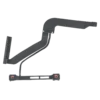
MacBook Pro 13″ (Mid 2012) Hard Drive Cable
Analysis Of The Flaw
The cable runs from the logic board SATA connector, across the optical drive and then underneath the hard drive, finally connecting to the SATA connector of the HDD.
Though this keeps the cable nice and secure, it also sandwiches it between the hard drive and the metal casing. In theory, it seems great, but unlike the exterior aluminum surface which is machined to an extra smooth finish, Apple skimped on machining the interior surface to match. This hasn’t been an issue with most of the MBP Unibody laptops, but the 2012 MBP 13″ hard drive cable was made a bit too thin. Flat flexible cables (FFCs) are supposed to be thin, but the 2012 hard drive cable doesn’t quite have enough of the plastic film base which surrounds and protects the internal wires.
Any time the computer is moved around, minor shifts of the hard drive and hard drive cable create friction between the cable and the coarse aluminum. Over time, this can result in exposure of the wiring embedded in the cable. Even a microscopic tear can be enough to ruin the cable entirely. And I do mean microscopic. We had to look through our microsoldering microscope with the highest magnification lens just to see evidence of the damage
Not All Cables Created Equal
This MacBook’s cable originally was manufactured with part number 821-1480-A printed on it. Apple offered this particular laptop (order number MD101LL/A) for a whopping four years due to high demand for the Unibody series of notebooks, and at some point wised up and began shipping computers with a revised version of the cable.
The new cables now included a different part number; 821-2049-A and later 821-2480-A. These cables were designed with a thicker plastic film and offered more protection to the wires. We verified the difference while examining some cables we’ve come across in used computers.
This is great news if you were able t get Apple to replace the cable, but new condition cables widely available on the internet may have these part numbers printed on them, but are not the revised cable design.
Manufacturers caught on to the fact that the new part numbers were more sought after and they simply started producing the same old cables with the new part numbers. To date, we’ve never been able to find new condition cables with the improved design. And believe me, we’ve been searching.
Bummer? Yes, but luckily there’s an easy preventative measure that only requires some supplies you probably already have lying around.
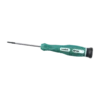
All you need to do it yourself is a Phillips PH000 screwdriver and some ESD safe tape. You probably have some common electrical tape which will be perfect for the task.
If you need a screwdriver:
How To Perform The Preventative Procedure
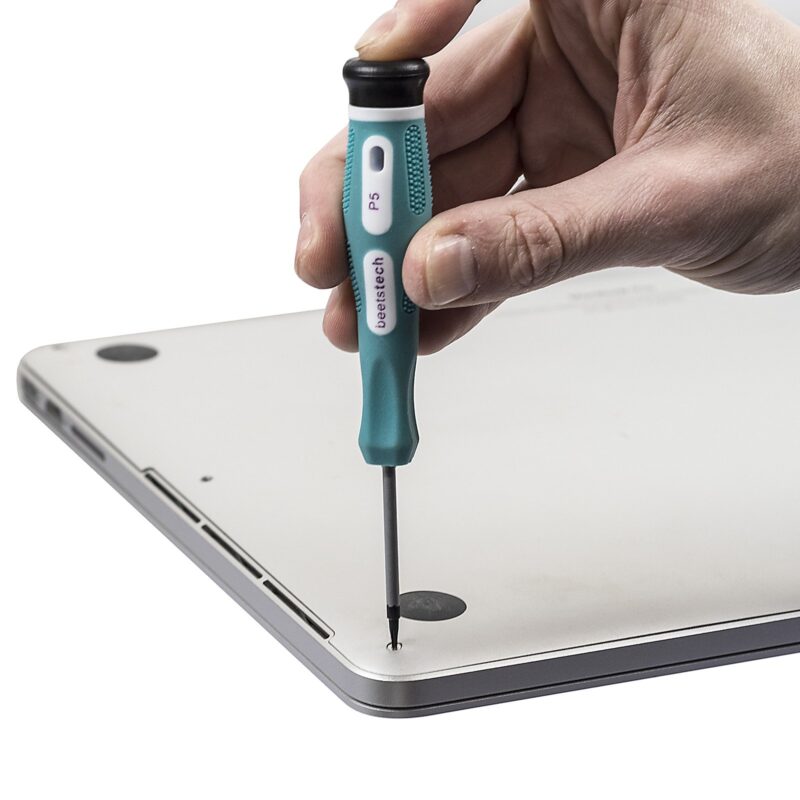
1. Remove the ten Phillips #000 screws which secure the bottom case and remove the bottom case.
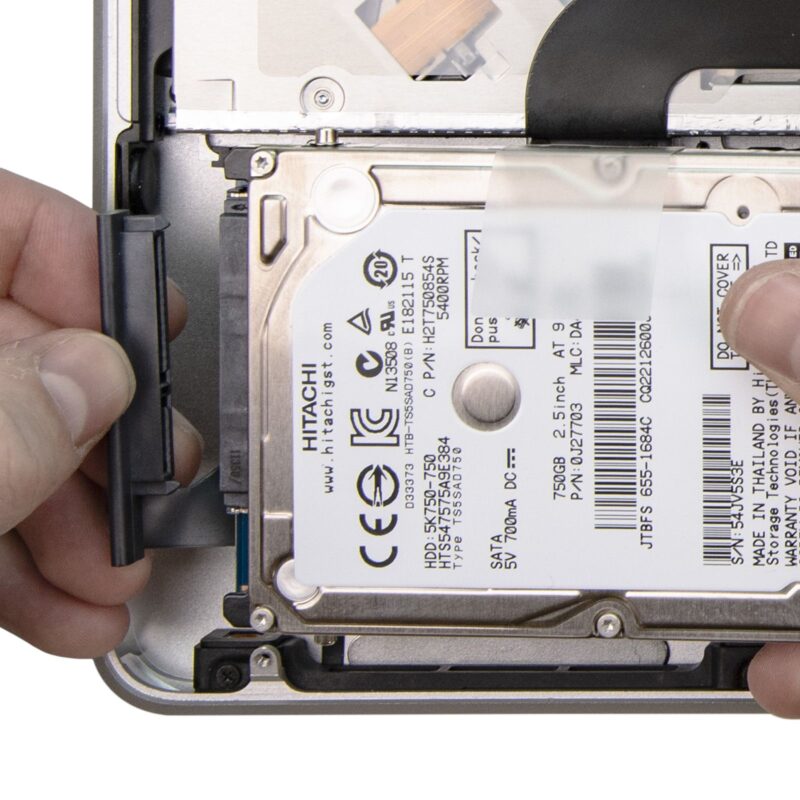
4. Disconnect the hard drive from the hard drive cable and set the hard drive aside.
5. Gently lift up the wide segment of the hard drive cable (the segment not adhered in place) to expose the aluminum underneath and apply tape to the aluminum surface where the hard drive cable will rest.
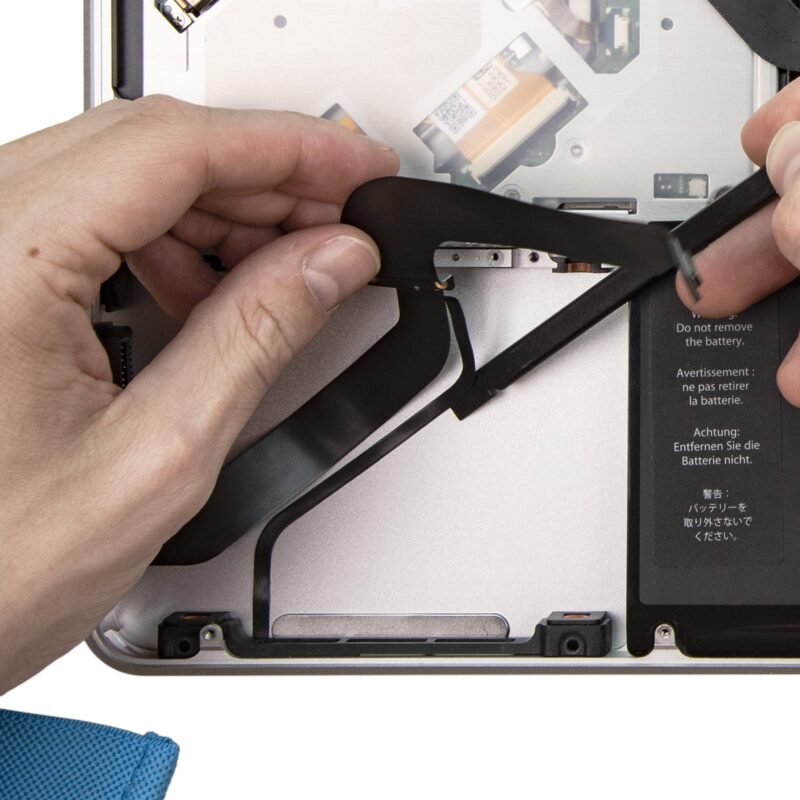
6. Apply a strip of tape to the top and bottom of the wide segment of the hard drive flex cable.
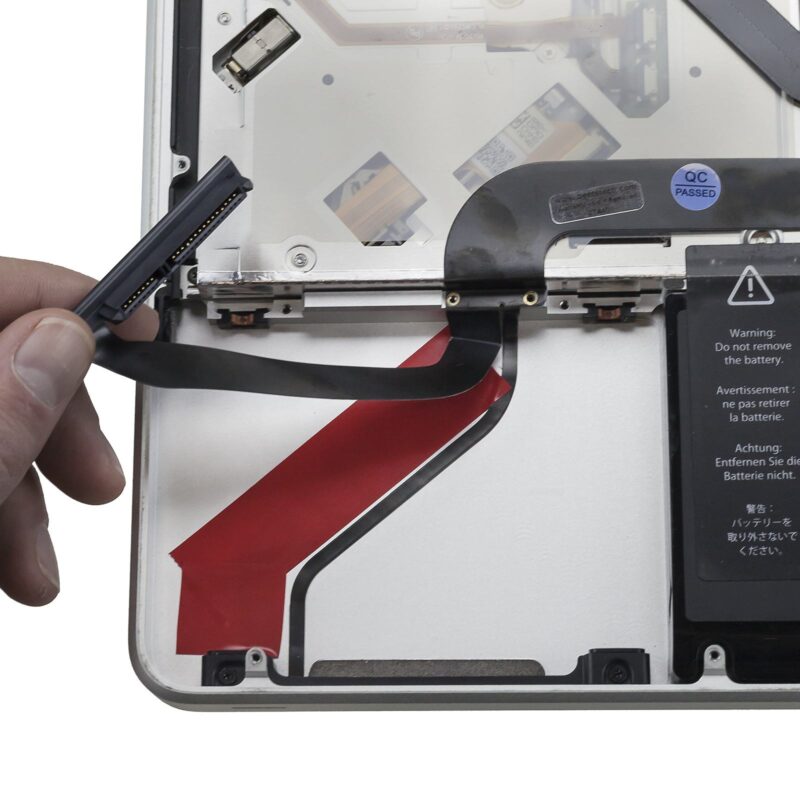
Congratulations! You’ve successfully prevented your Mid 2012 A1278 hard drive cable from catastrophically failing when you’d least expect it. Strip a screw in the process? Check out our stripped screw solution.
Now we can’t guarantee your hard drive cable will continue to work forever. Remember, these flex cables fail with some frequency in all of the Unibody MBP laptops. The internal wires are made especially thin and sometimes fail for seemingly no reason at all, but this procedure takes only minutes to perform, costs almost nothing, and gives your cable the best chance at surviving for the long term.
Like this post
About the author

46 comments
Leave a comment
Recommended posts
High Sierra and Testing RAM
With macOS 10.13, otherwise known as High Sierra, Apple introduced an ambitious EFI update. Several of the changes include: the introduction of the Apple File System, support for NVMe drives, and the usual batch of security updates. However, these EFI updates can cause some unwanted behavior when you test your Apple computer’s memory. At Beetstech, we use a long-time industry standard, MemTest86 to perform a comprehensive test of each computer’s RAM.
But never the type to blindly accept test results, strange testing outcomes led us to discover a bug in MemTest86 affecting computers running the new EFI firmware. In short, the newly updated EFI causes MemTest86 to incorrectly fail certain tests. But there is good news: while normal operation of MemTest86 is limited under these new EFI updates, we also discovered some simple workarounds for testing your Apple’s memory in MemTest86.
So let’s dive into how we discovered the MemTest bug, devised a reliable work-around, and get into some nitty gritty details of MemTest86 operation.
MacBook Air Power-On Pads – Location & Use
They go by “jumper pads”, “short-circuit pads”, “power pads”, and “power-on pads”. Whatever you call them, there are two bits of metal on your MacBook logic board that can force your laptop to boot up, even if the power button won’t do the trick.
OEM MagSafe Chargers vs Cheap Imposters: Teardown for Truth
Anywhere premium products are produced, there are unsavory folks trying to make a quick buck selling cheap knockoffs. It happens in every industry, from clothes to food to tech. But in recent years, counterfeit electronics have surpassed nearly all other categories of counterfeit goods by dollar value, and Apple, being the de facto high-end electronics manufacturer, makes for a prime target.
But you’d never be caught buying counterfeit electronics, because you can tell the difference, can’t you?
The Ultimate Guide to Apple’s Proprietary SSDs
Remember the good ol’ days of carrying a spare battery, upgrading your own RAM, maybe even adding a second hard drive? If you’re an Apple user, those luxuries may be behind us, but upgrading your own solid state drive is still a privilege the Apple overlords allow us to have, for now that is.
Despite retaining the ability to upgrade your own SSD, ever since Apple introduced their proprietary “blade” SSDs in 2010, the task hasn’t been as simple as it once was. Apple talks up read and write speeds, but they rarely dive into the nitty gritty details of the technology behind the SSDs they use — drives specially designed only for Apple computers.
After countless questions, both from customers and our own staff, we decided to start our own investigation into the hardware involved. You have to be a bit of a private eye to uncover the secrets behind these drives, and the deeper we looked, the more surprises we found.
Way cool, some valid points! I appreciate you
making this post available, the rest of the site is also high quality.
Have a fun.
Thank you Laurinda! We appreciate you.
I have a question, it’s kind of weird. I own a Macbook Pro ’13 mid. 2012 A1278, I repleaced the SATA cable a few months ago (the original cable failed), and today I’m trying to install an SSD; everything works flawless when I start the computer with an external adaptor, but when I put the SSD in the internal, it just doesn’t work, but with my HDD it does work. What do you recommend, should I change the SATA cable again? Same model, or an upgraded model?
Hey Johny that is a strange issue. If your HDD works okay I wouldn’t think you need another SATA cable. What version of MAC OSX are you working with? I’ve had similar things occur with High Sierra. What seems to solve it for me is using a Sierra installation with a SATA to USB cable adapter. I then use disk utility and erase the drive to MacOS Journaled. Once that is done the drive works well for an APFS High Sierra install.
Johny, did you get your MBP running? I have the same exact problem. I just ordered the SATA cable and I’m hoping that will work.
The SSD works great in the external USB but I get errors when installed.
I’m almost running out of options here…very frustrating…
Here I thought I was alone on this I did the same I installed an SSD drive at first it worked great then after moving my laptop it failed I did notice when my battery level was below 45% it failed again (Note: it ran great plugin in for two days )but if I ran the SSD on windows and in a USB case it works fine go figure i know the cable should be replaced as well so back to the drawing board
There is a second issue with the cable! That of the folds you don’t want sharp creases you want smooth arcs. The best way to create the radius is to use a BIC pen ink straw to roll the cable around.
This is exactly what is happening to me too. I put the same HD in a disk enclosure started it from there it works like a charm but when I install it in the machine, nothing works. I was going to change my cable but since I saw your answer, I am not what I should do now! Did you get this issue fixed? Could you please provide info.
Hi, guys! I am having the same issue and tried almost everything possible. When the samsung ssd 860 evo 1t is used as an external drive it works just fine. When I swap it and make it internal it is dead slow. I have also used the red tape to coat the existing SATA cable and nothing changes. Once I put the old HDD all works fine, as expected. I honestly think it has to do with the speed supported by the SATA cable. I know that different SSDs have different speeds and the Samsung ones are pretty fast. Will do some digging and let you know.
Hey I have the same model A1278- and I have a Samsung Evo 1TB SSD in it and it works fine. I never changed the cable. so there must be a way to make the old cable and new ssd work together. But I’m not sure what I did differently…
Hi! I swapped the SATA cable and it work fine. My only guess is that the original one did not “embraced” the pins of the new ssd as it should. As I said it wirked fine with the original HDD. Anyways, all good now and the MBP improved 10 fold!
I have found out the reason is if you are using the original sata cable it only support sata 2 if you replace it with a new one it will support sata 3. When you replace it you will notice a big difference.
I have a question about my MacBook. I recently had my girlfriends hard drive cable replaced after her machine wouldn’t boot up and it works like new again. I have noticed my MacBook to be slowing down and constantly getting the spinning wheel when performing multiple tasks, and takes forever to boot up. I am curious if my hard rive cable is beginning to fail or if there is another issue. I am going to have a SSD put in and add more RAM so I want to know if this is something that should be fixed first.
So I guess what I am asking is if the cable is damaged at all, will the system simply not boot up, or is it possible for it to boot up but have a significantly decreased performance.
Thanks!
Paul, depending on the damage to the cable either scenario is likely. I would say it’s more likely the computer would start booting but fail because of the cable rather than decreased performance. Once you get the SSD in, hopefully with a fresh install of OSX, that will really be the test.
Besides the cable needing added protection as well as not damaging the cable when putting it in (not folding the bends forming a nice arc) The newest version of the cable is also rated for SATA III (6.0 Gb/s) unlike the original cable (Gen 1 & Gen 2) both only worked at SATA II (3.0 Gb/s). So when you put the new SATA III drive in your system it encountered errors when the data ran across the low grade cable. This is also the case for the 2011 systems as well. All three 2011 & 2012 models support SATA III drives. 2010 and older systems only support SATA II drives or drives which can run at SATA II. Many drives today are only SATA III so you do need to review the drives specs sheet to see if the SATA II (3.0 Gb/s) data rate if not don’t buy it!
Can you post more pics because I’m not clear as to what to do
It’s working solution. My macbook is working now without issue after this fix. Thanks a lot my friend.. 👌👍🏻✌️👏
Bought a replacement cable from Beetstech (at the link above). Works great and fixed my problem of a HD that took forever to erase, and would not accept a fresh OS install. I followed the directions here, https://www.ifixit.com/Guide/MacBook+Pro+13-Inch+Unibody+Mid+2012+Hard+Drive+Cable+Replacement/10379
Thank you. Can you clarify exactly what kind of tape qualifies as ESD safe tape? I have old-fashioned black electrician’s tape, the kind that’s shiny on the non-stick side, but I don’t know if it can take the heat or if my MacBook will like it. I see a variety of ESD safe tapes for sale on line.
The Black electricians tape is just fine.
Does this mean the 821-2480-A cable sold by Beetstech also does not have the thicker insulation?
This is correct, Bob. Since our cables are OE, we recommend taking some preventative measures by adding insulation whether it be from electrical tape, polyimide film tape, or another suitable insulating material. Thanks for your question!
HI Guys. I really appreciate you tips. kind regards.
Mac bookpro mid 2012 Hard Drive Cable fix
Does this cable fit a 15” MacBook Pro ?
I’m assuming intervals are the same with a bigger screen. Also my MacBook is 2012 ??
Thanks !
The 15″ models use a different cable (different routing and length) but faces the same issues.
No.
RAD
Similar to Randolf’s question, can I replace my mid-2012 MacBook Pro 13″ hard drive cable with the one from my late 2011 MacBook Pro 13″? AFAIK, the two models are nearly identical except for the slightly faster CPU on the 2012 model.
Thanks! 🙂
Does anyone have an idea?
This is an interesting question and something I hadn’t thought of previously. There are actually a few other differences between the 2011 and 2012 releases that I’d consider relatively substantial, but nothing that should affect the hard drive cable.
I’ve heard reports of people installing 2012 hard drive cables into their 2011 MacBook Pro while upgrading their 2011 device with the Mid 2012 logic board, so I’d imagine it could work the other way as well.
Just swap your 2011 cable into your 2012 MacBook Pro and find out. And be sure to report back with the result 😃
This may work if the board supports it.
I have a simple but annoying problem regarding the hard drive unibody cable. I want to order a cable for my laptop but can’t figure out which one to order. I noticed that there are mostly A1278 (model number) cables. How do I identify the model number of my cable, like is you guys’ cables actually labelled with A1278. Please help…
Hi Raphael,
To find the exact hard drive cable for your device, you’ll first want to use the “Browse by Model” buttons on the left side of the home page to narrow down the result to your exact device. Then check the box labeled hard drive cables. The website will then show you the compatible hard drive cable.
Another way of doing this would be to simply search your devices serial number on our website, then check the box next to the hard drive cables on the left side of the screen.
Please let us know if you are still having troubles.
Hello there, I have done this using capton (aks Polyamide) tape because of its resistance to puncture. I applied the tape to both sides of the cable, all aluminum surfaces the cable rests on (also the corners of the DVD drive). I also applied the tape to the aluminum area where the cable if fastened with two small screws. The tape was also applied to the underside of the part that retains the hard drive and covers the cable.
All the cables of 2012 MBP 13″ still died after a 7 to 12 months.
I am now suspecting things like tin wiskers/ROHS on the soldered connectors at the ends of the cable;
https://nepp.nasa.gov/whisker/
Thank you for this article. My MacBook Pro 13” 2012 fell off a cliff two weeks ago, and it was indeed due to a hard drive connector failure. Unfortunately, I wasted a weekend on troubleshooting and wiping two hard drives in vein. I appreciate the tip on the electrical tape underneath my newly installed hard drive connector cable installation. Crossing my fingers that this prolongs the life of my frugal laptop.
Thx – isolating the cable with clear scotch tape seems to have resolved my probs… Also had to reformat the Seagate SSD via terminal/erase command to get it to show up (and my MacBook only likes APFS file structure).
Thanks for the clear explanation and fix instructions. My cable did indeed short out and caused permanent damage to the SSD into the bargain (which made diadnosing the problem a LOT harder).
I just had the same issue and it was a pain to figure out what is going on.
Been there, done that. Since my 2011-era MBP, I have replaced that cable 4 times. Surely my habit of holding the laptop with one hand from the right side while walking didn’t help. Most of the time I got a replacement cable from China, though unclear if a knockoff or hastily refurbished unit, but one thing for sure: the IR receiver never worked on the replacements. Let’s hope Beetstech also tests this often-overlooked functionality.
Hey Pat, so coming from us, whether these cables are tested comes down to the condition. Our used parts are fully tested (including the IR sensor on the hard drive/IR sensor cable, whereas our new condition parts are not tested individually. In any case, both the new and used cables include a lifetime warranty. Ideally you won’t need to make use of it, but if for any reason you receive a part that isn’t in working condition, it will be covered under warranty for a refund or replacement.
I’m still an avid user of the mid 2012 model and have had this problem a few times. it happened earlier on this week and have been searching for a viable solution! will be trying this when my new one arrives.
I was talking about this with a friend of mine and they’ve suggested taking a dremel tool to the same corner you’ve mentioned where the cable rests…
although its a bit of a grey area I am actually considering this combined with your suggestion and might try it again after the next cable failure!
I was also considering the Sandman solution.
This is a greaf article. I decided to stick a SSD and run the fresh ribbon over the top covered with masking tape and say goodnight to an old problem.
Will this hack work if the laptop is already exhibiting the failure?
If you’re already experiencing a failure due to the HDD cable, you’ll still need to replace the cable. The tape trick just prevents the same issue from showing up after the cable’s been replaced. One of the most common issues with this cable is that the plastic insulation is overly susceptible to wear, so the tape is just an easy low-cost way to extend the lifespan of a working cable. It doesn’t completely eliminate the possibility of future cable failures, but it does significantly reduce the chances of further issues.